Reduce AI token spend without changing your applications
Coding agents and retrieval-augmented generation (RAG) pipelines send large payloads to large language model (LLM) providers on every turn. Tool outputs, build logs, and file listings fill the request body, and the provider bills you for every token in it, even though those tokens rarely change the response.
This guide adds tsheadroom to your Aperture gateway. tsheadroom is a small service that runs in your tailnet and compresses bulky requests as they pass through Aperture. It builds on Headroom, the open-source headroom-ai library, which shrinks oversized request bodies while preserving the prompt content. Once configured, Aperture compresses qualifying requests transparently, with no change to your applications. The tool-heavy request used in this guide compresses from roughly 47 to 25 kilobytes, about half the billed tokens on that turn, and adds single-digit milliseconds of latency on a warm worker. The first request after the model loads runs higher.
How it works
Aperture can hand each request to an external service before it forwards the request to the provider. Aperture calls this mechanism a guardrail, and it runs as a hook on the pre_request event. tsheadroom follows the custom webhook pattern to rewrite the request body and make it smaller, so you inspect and shrink traffic centrally without changing the clients that send it.
tsheadroom runs on a Linux host that you provide. In this guide, host means the Linux machine you run tsheadroom on, and device means tsheadroom's identity in the tailnet, which appears as tsheadroom on the Machines page of the admin console. It joins the tailnet on its own with a stable MagicDNS name. Clients reach Aperture over the tailnet, and only the LLM provider is external. Refer to Security notes for how access is gated.
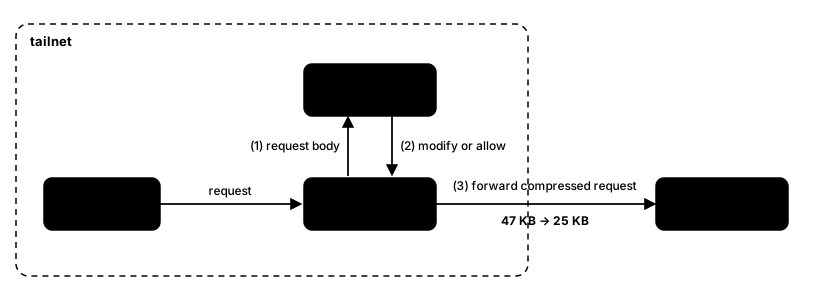
Aperture calls tsheadroom as a synchronous pre_request hook over the tailnet, then forwards the compressed request to the provider.
When a request arrives, Aperture calls tsheadroom and sends it the request body. The call is synchronous, so Aperture waits for tsheadroom to answer before it forwards the request. tsheadroom returns modify with a smaller request body when it compressed something. It returns allow when nothing is worth compressing, or when anything goes wrong. The hook uses fail_open, so an unreachable or slow device passes the original request through uncompressed. tsheadroom can add a little latency but never blocks a request.
Prerequisites
This guide is for platform and infrastructure engineers comfortable editing Aperture's configuration, administering a tailnet, and running a Linux service with Docker.
Before you begin, make sure you have the following:
-
A Tailscale network with at least one running Aperture gateway with at least one LLM provider configured, as described in Set up LLM providers.
-
Permission to edit your Aperture configuration, either on the Administration > Configuration page of the Aperture admin dashboard or through the Aperture configuration API.
-
A Linux device in the tailnet to run tsheadroom on. This device should have Docker and the Docker Compose plugin installed, and it should have enough memory to hold the model in RAM. The
mlvariant of Headroom needs roughly 600 MB per worker. -
Owner, Admin, IT admin, or Network admin permissions to generate a Tailscale auth key.
To avoid unexpected TLS issues, use http:// for the Aperture URL when configuring LLM clients. All connections remain encrypted using WireGuard, even when HTTPS is not used.
Step 1: Generate a Tailscale auth key
tsheadroom joins your tailnet with a Tailscale auth key, which lets it authenticate the first time it starts with no interactive login. After it saves its identity to the state directory, restarts no longer need the key.
- Open the Keys page in the admin console.
- Select Generate auth key.
- Give the key a description and an expiry, then select Generate key.
- Copy the
tskey-auth-...value right away and store it safely. You use it later as<ts-auth-key>.
You have finished this step when you hold a string that starts with tskey-auth-. Treat it as a secret, as the auth keys documentation explains.
Step 2: Deploy tsheadroom
Now you run tsheadroom on your Linux host. Docker Compose builds the service, installs Headroom, joins your tailnet, and serves the hook on port 80. When this step finishes, a device named tsheadroom is online and ready for Aperture to call.
Clone the repository and prepare its configuration:
git clone https://github.com/tailscale/tsheadroom.git
cd tsheadroom
cp .env.example .env
mkdir -p config && cp tsheadroom.config.example.json config/config.json
This creates the .env file you edit next and seeds config/config.json with the default compression settings.
Open .env and set these four values:
TS_AUTHKEY=<ts-auth-key>
TS_HOSTNAME=tsheadroom
HEADROOM_VARIANT=ml
POOL_SIZE=1  # ships as 4. Lower to 1 on a fresh host so the model downloads once, then raise after your first successful run
TS_AUTHKEY is the key you generated, and TS_HOSTNAME becomes the device name in your tailnet. HEADROOM_VARIANT=ml selects the compression that shrinks both tool output and prose, and installs headroom-ai[ml] in the image. POOL_SIZE sets the number of workers, each of which holds its own copy of the model in memory.
Build and start the service:
docker compose up -d --build
The device identity and model cache live in named Docker volumes, so a restart never re-authenticates the device or downloads the model again. To update tsheadroom later, run git pull && docker compose up -d --build. The bundled docker-compose.yml runs the binary with -v, so the per-request logging you read at the end of this guide is on by default.
You have finished this step when docker compose logs -f shows the device joining the tailnet and the workers reporting ready. Under the ml variant, each worker loads the model at startup and logs ML model preload complete when it finishes, so the roughly 600 MB download happens where that log line appears, not on the first request.
Step 3: Confirm the device joined your tailnet
Check that the device is online and answering before you touch Aperture. Testing tsheadroom by itself separates a device problem from an Aperture configuration problem.
First, open the Machines page in the admin console and confirm a connected device named tsheadroom appears. Its URL is http://tsheadroom.<tailnet-name>.ts.net/. Replace <tailnet-name> with your tailnet name, the label that appears before .ts.net (for example, tail1a2b3c). You can find it on the DNS page of the admin console. If you changed TS_HOSTNAME, use that name in the URL instead.
Next, from another device on the same tailnet, send a request shaped like the bulky tool output that tsheadroom compresses.
python3 - <<'PY' | curl -s -X POST http://tsheadroom.<tailnet-name>.ts.net/ -H 'Content-Type: application/json' -d @-
import json
big = json.dumps([{"id": i, "path": f"/src/m{i}.py", "status": "unchanged",
                   "hash": "deadbeef"*4} for i in range(400)])
print(json.dumps({"request_body": {"model": "claude-sonnet-5-5", "messages": [
    {"role": "user", "content": "list files"},
    {"role": "assistant", "content": [{"type": "tool_use", "id": "t1", "name": "ls", "input": {}}]},
    {"role": "user", "content": [{"type": "tool_result", "tool_use_id": "t1", "content": big}]},
    {"role": "user", "content": "summarize"}]}}))
PY
A working device returns {"action":"modify","request_body":{...}} in milliseconds, because each ml worker loaded its model at startup. On a fresh host, a request sent before the workers finish loading blocks for up to about 60 seconds while the first worker loads the model, then returns modify. For this large request, tsheadroom returns allow only when the caller cancels first, such as Aperture's timeout or curl --max-time. A well-formed short chat, tested next, returns allow because there is nothing worth compressing. Wait for the ML model preload complete log line, then retry.
To confirm the opposite case, send a short chat. It should return {"action":"allow"}.
curl -s -X POST http://tsheadroom.<tailnet-name>.ts.net/ -H 'Content-Type: application/json' \
  -d '{"request_body":{"model":"claude-sonnet-5-5","messages":[{"role":"user","content":"hi"}]}}'
You have finished this step when the large request returns modify and the short chat returns allow.
Step 4: Define the hook in Aperture
Add tsheadroom to the hooks map in your Aperture configuration so Aperture can reach it. The hook receives no traffic until you enable it in the next step.
Open Administration > Configuration in the Aperture admin dashboard. Add the following entry to the top-level hooks map. Set url to the device URL you confirmed earlier.
To edit through the API instead:
- Call
GET http://<aperture-hostname>/api/configto get the complete configuration and its hash. - Add the hook to the returned configuration.
- Send a JSON object to
PUT http://<aperture-hostname>/api/config. Setconfigto the complete HuJSON configuration string andhashto the original hash. This replaces the complete configuration.
Aperture uses HuJSON, which supports comments and trailing commas. You can omit the explanatory comments in these examples.
"hooks": {
  "headroom": {
    "url": "http://tsheadroom.<tailnet-name>.ts.net/",
    "fail_policy": "fail_open", // if tsheadroom is unreachable, send the request uncompressed
    "timeout": "30s",           // the entire latency budget for this hook
  },
},
Keep fail_policy at fail_open so an unreachable or slow hook does not block traffic. Set timeout to 30s to allow large requests to finish compression. The 5s default can time out and send the request uncompressed.
tsheadroom needs no apikey or authorization. Aperture reaches it over your tailnet, where your grants control access.
You have finished this step when Aperture accepts and saves the updated configuration.
Step 5: Attach the hook to a grant
Add a grant that sends the request body to tsheadroom on the pre_request event. Start with one provider so you can verify compression before sending more traffic.
Add the following grant to your Aperture configuration.
{
  "src": ["*"],
  "app": {
    "tailscale.com/cap/aperture": [
      {
        "models": "anthropic/**",   // start scoped to one provider. Widen to "**" after you verify
        "send_hooks": [
          {
            "name": "headroom",
            "events": ["pre_request"],
            "send": ["request_body"],
          },
        ],
      },
    ],
  },
},
The grant uses these fields:
src: ["*"]matches every caller.models: "anthropic/**"limits this grant to one provider. Widen it after you verify compression.send_hookssendsrequest_bodyto theheadroomhook on thepre_requestevent.
You only need to configure request_body in send. Aperture also sends model and session_id automatically. tsheadroom uses them to size compression and route requests from the same session consistently.
If you keep your access rules in the tailnet policy file instead of the Aperture configuration, that grant also needs a dst field, because policy-file grants require both a source and a destination (grants syntax reference).
You have finished this step when the configuration saves with the grant in place. The hook is now live.
Step 6: Verify end-to-end compression
Now watch tsheadroom compress a real request as it flows through Aperture. The -v flag that the deployment sets logs one summary line per request, which is where the savings appear.
- Stream the logs with
docker compose logs -f. - Make a real LLM call through your Aperture endpoint, using an Anthropic model so it matches the
anthropic/**grant you scoped in Step 5, that includes a substantial tool result, or run a coding-agent session that does. - Find a log line ending in
-> modifywithout_bytessmaller thanin_bytes. That line confirms compression is running.
A worker's first served request (cold=true) and a later one (cold=false) appear as follows. The cold=true flag marks the worker's first served request, not a slow one.
request in_msgs=4 in_bytes=47227 out_bytes=24885 wire_bytes=47227 dur_ms=48 read_ms=2 write_ms=1 worker_ms=42 slot=0 cold=true model_limit=200000 -> modify
request in_msgs=4 in_bytes=47227 out_bytes=24885 wire_bytes=47227 dur_ms=12 read_ms=1 write_ms=0 worker_ms=11 slot=0 cold=false model_limit=200000 -> modify
Compare out_bytes to in_bytes. The wire_bytes, model_limit, the _ms timings, and slot fields are diagnostic, so ignore them here.
For ongoing measurement rather than per-request lines, tsheadroom exposes Prometheus metrics at http://tsheadroom.<tailnet-name>.ts.net/metrics, including headroom_tokens_saved_total.
Before you widen models to "**", run a representative coding-agent or RAG task through the scoped grant and confirm the responses are unaffected.
You have finished this step, and the whole setup, when the log shows -> modify with a reduced out_bytes for a tool-heavy request. If every request logs allow, work through Troubleshooting. To turn compression off, refer to Roll back or disable compression.
Roll back or disable compression
Compression now runs on live traffic, so keep an off switch ready.
-
To stop compression, remove the
send_hooksentry from the grant, or remove the grant, and save. Traffic flows uncompressed immediately. -
To stop compression for one provider, narrow
modelsback down. -
Because the hook is
fail_open, even leaving tsheadroom stopped is non-blocking. Removing the grant is the clean way to disable it. -
To decommission the device, stop the container with
docker compose down, then delete thetsheadroomdevice from the Machines page.
Troubleshooting
If the hook does not behave as expected, work down this section. The model-load case follows the table because it needs more explanation.
| Symptom | Cause | Fix |
|---|---|---|
Every request logs allow and nothing compresses | The grant does not match, or the body has nothing worth compressing. A line that reads allow(noop) means nothing was worth compressing, such as a short chat. A line that reads allow(passthrough) means the body had no messages array, such as an embeddings call or a Gemini contents body. Both are correct behavior. | Confirm the grant's src covers your users and its models covers the models you call. If prose specifically is not shrinking, confirm the build used the ml variant (HEADROOM_VARIANT=ml in .env, then docker compose up -d --build), and read live settings with curl http://tsheadroom.<tailnet-name>.ts.net/config. |
| No requests reach the device at all | Aperture cannot resolve or call the hook, or the send_hooks name does not match. | From a tailnet device, repeat the request test. If it returns no JSON, the problem is the device or its URL, not Aperture. Confirm the grant's send_hooks entry names the hook exactly as you named it when you defined the hook (headroom). |
If the first request is slow or times out, account for the one-time model load. Each ml worker loads the compression model at startup, before it reports ready (refer to Step 2). On a fresh host, it also downloads roughly 600 MB, which can take up to about 60 seconds. A request that arrives while the workers are still loading blocks until a worker is ready, then returns modify, unless the caller cancels first. If cold requests exceed the Aperture hook timeout and fail open, raise the timeout above the 30s you set when you defined the hook, or set a Hugging Face token to avoid rate-limited model downloads. Generate a read-scoped token on the Hugging Face tokens page.
Security notes
Understand these security properties before you run tsheadroom in production.
-
tsheadroom has no public endpoint. It joins the tailnet with
tsnet, which embeds Tailscale directly into the program, so it appears as its own device with a stable MagicDNS name liketsheadroom.<tailnet-name>.ts.net. It is reachable only over your tailnet, where your grants gate access, so it needs no API key or bearer token of its own. -
The
/configendpoint is read and write to any device that can reach tsheadroom over the tailnet. There is no per-endpoint auth, so anyone who can reach the device can read and change its compression settings, and/metricsreveals model and provider names. Give the device a tag and scope grants tightly by restrictingsrc. -
The auth key (
<ts-auth-key>) and the state directory are secrets. The state directory holds the device's private key (tailscaled.state), so keep it on durable storage and treat it as sensitive. Keep the auth key out of version control, and prefer a short expiry, because tsheadroom needs the key only for its first start. -
The
fail_openpolicy is deliberate, so tsheadroom can never block a request even when it is down. That choice favors availability over enforcement, which is correct for a compression hook. Do not treat the hook as a security control. -
Request bodies pass through tsheadroom in memory for compression. Under the
mlvariant, the only outbound network call is the one-time model download from Hugging Face. A Hugging Face token authenticates that download but sends no request content. tsheadroom does not send request content to any third-party service.
Next steps
With bulky requests compressing in production, you can tune the setup to your traffic.
-
Widen
modelsfrom"anthropic/**"to"**", or to additional providers, after you have verified response quality on the scoped grant. -
Raise
POOL_SIZEin.envafter the model has downloaded, so tsheadroom handles more concurrent requests. Eachmlworker holds its own copy of the model, so size the pool to the host's memory. -
Adjust what tsheadroom compresses. Read the compression settings on the device with
curl http://tsheadroom.<tailnet-name>.ts.net/config, and change them with aPUTto the same endpoint.
Further exploration
These documentation topics cover the Aperture and Tailscale features this guide relies on.
-
Aperture configuration reference covers the
hooksmap,send_hooks, events, and the guardrail response format. -
Build a custom webhook describes the
pre_requesthook pattern that tsheadroom implements. -
Guardrails explains the guardrail model that tsheadroom plugs into, including the
fail_policybehavior. -
Control AI access and Set up LLM providers cover the Aperture prerequisites.
-
Auth keys covers the key you generated at the start.
-
Grants syntax explains the grant and the policy-file
dstrequirement.