Restrict device access with Fleet
Fleet Device Management collects a series of signals from its agent installed on each device that can be used to determine the security posture of a device.
Tailscale can fetch these signals from Fleet and use them as device posture attributes in access rules, which can then be used by organizations to grant access to sensitive resources only to devices that have a high level of trust.
You can achieve this with Tailscale's device posture management features:
- Device Identity Collection, which collects identifiers (for example, serial numbers), used to match devices in Tailscale to devices in Fleet.
- Fleet posture integration, which synchronizes signals from Fleet to device posture attributes in Tailscale.
- Posture conditions in access rules, which lets you configure access restrictions based on device attributes.
This guide explains how to enable Device Identity collection for your Tailscale network (tailnet) and configure Fleet posture integration.
What is Fleet posture integration?
The Fleet integration syncs data between Fleet and Tailscale on a recurring schedule. During each sync, Tailscale performs the following actions:
- Fetches a list of hosts and their reported data from your Fleet account.
- Matches Fleet devices to devices in your tailnet based on serial numbers.
- Writes the Fleet data to device posture attributes on each matched device.
The integration writes the following device posture attributes to matched devices:
| Attribute key | Description | Allowed values |
|---|---|---|
fleet:present | whether the device is managed by Fleet | true, false |
fleetPolicy:{name} | whether the device matches a Fleet policy | true, false |
Prerequisites
Before you set up the Fleet integration, make sure you have:
- Device Identity Collection enabled, with devices in your tailnet reporting identifiers.
- A Fleet user account with the Admin role to create an API-only user for the integration.
- A Tailscale user account with the Admin role in the tailnet where you want to configure the integration.
Configure the Fleet integration
Tailscale uses a Fleet API token to authenticate with Fleet and fetch a list of devices and their data.
To connect Fleet to Tailscale, first create an API-only user and generate its API token in Fleet. Then enter the token and your Fleet URL in the Tailscale admin console. Tailscale uses these details to fetch device data from Fleet.
In Fleet:
- Create an API-only user for the Tailscale integration.
- Assign the Admin role to that API-only user in Fleet.
- Generate an API token for that API-only user in Fleet.
In Tailscale:
- Open the Device management page of the admin console.
- Under Device Posture Integrations, locate the Fleet integration and select Connect.
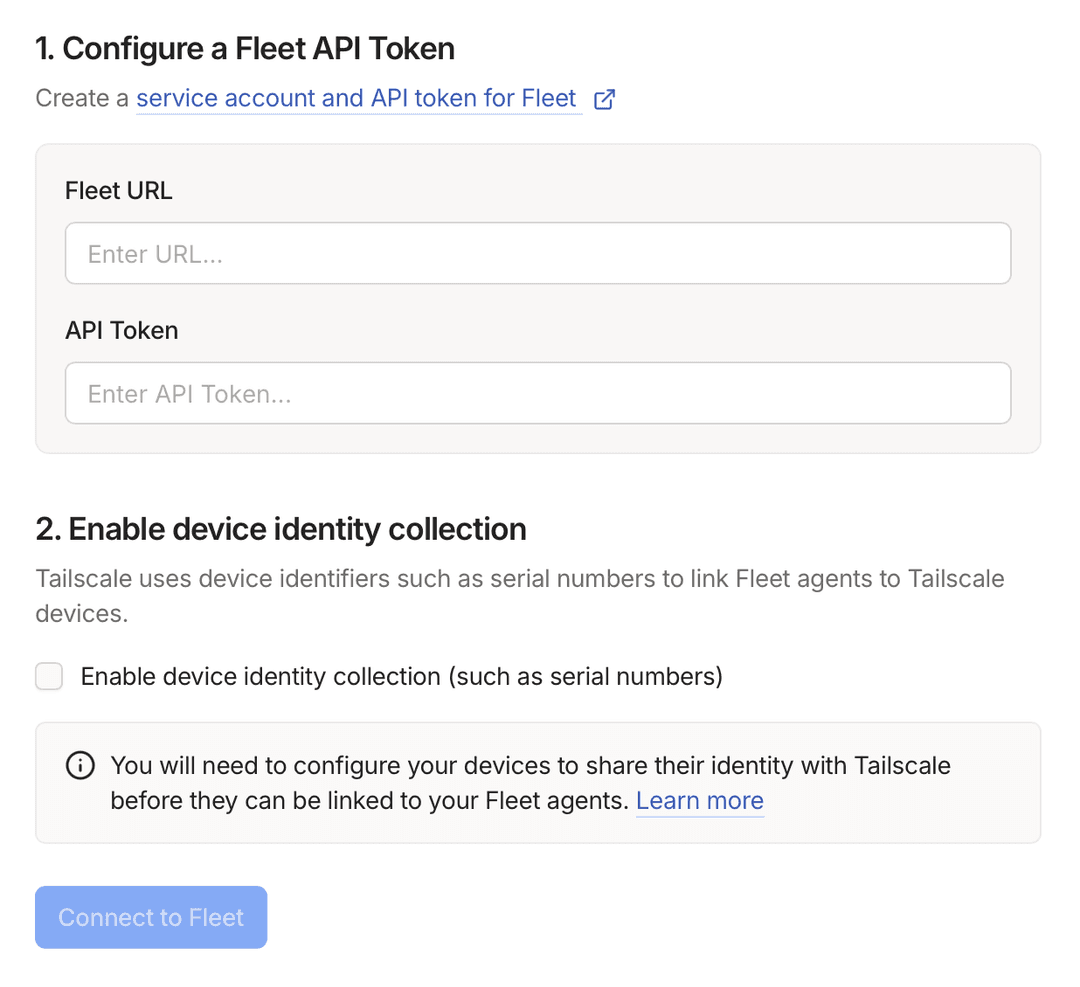
- Enter your Fleet URL and the API Token generated in Fleet.
- Select Connect to Fleet.
Refer to the Fleet documentation for instructions on creating an API-only user and generating an API token.
Create Fleet policies
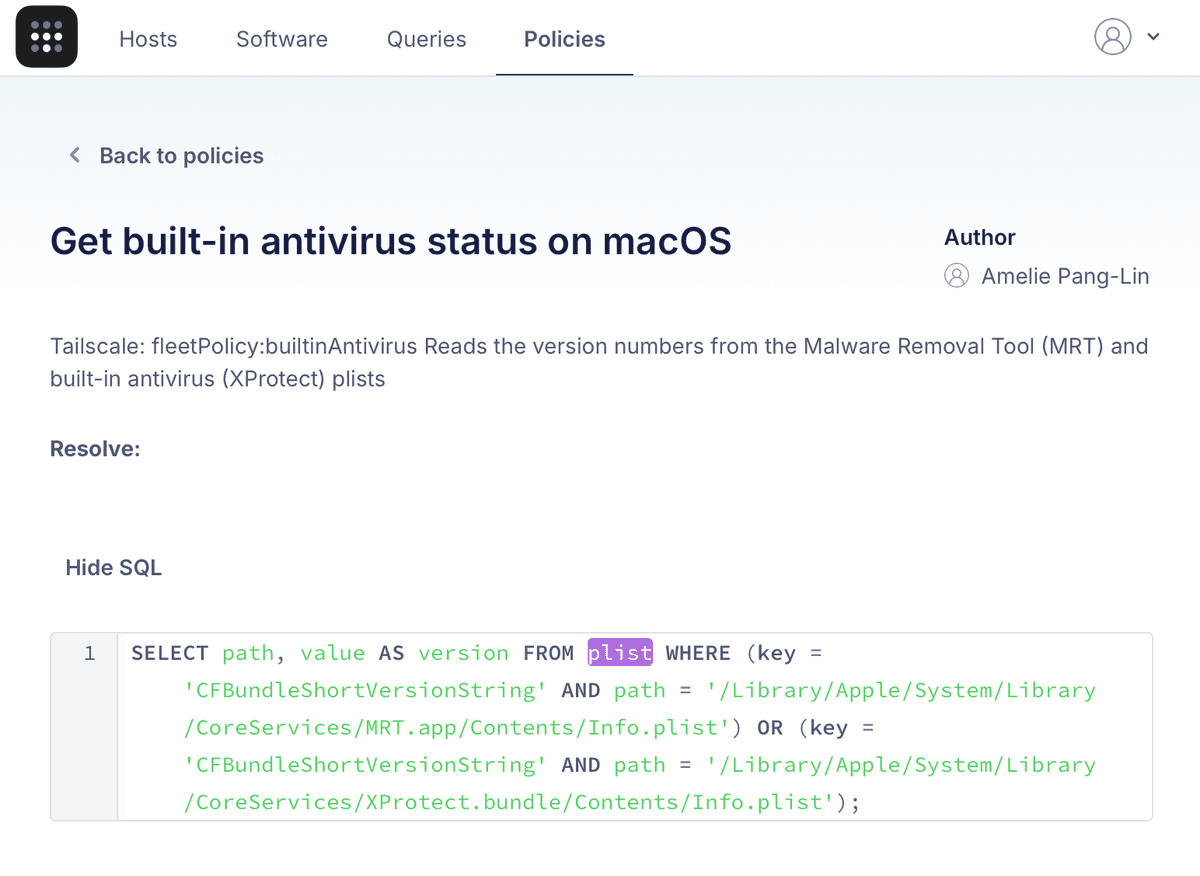
Fleet policies let you monitor whether your devices meet specific security and compliance criteria. These policies are specific to your Fleet account.
The Fleet integration can add device attributes to devices that are passing Fleet policies.
To enable adding these device attributes, add the string Tailscale: fleetPolicy:{attributeName} to your Fleet policy description.
- For each Fleet policy a device passes, the Fleet integration will add a
fleetPolicy:{attributeName} = truedevice attribute to that device. - For each Fleet policy a device fails, the Fleet integration will add a
fleetPolicy:{attributeName} = falsedevice attribute to that device. - If multiple Fleet policies have the same
Tailscale: fleetPolicy:{attributeName}string in their policy description, the device attribute will betrueif any of the matching policies are passing, otherwise false.
You can check for the presence of a given Fleet policy in a device's attributes in access rules, then adjust its access accordingly.
Configure Fleet posture integration
To configure Tailscale to fetch data about devices from Fleet:
-
Open the Device management page of the Tailscale admin console.
-
Under the Device Posture Integrations section, locate the Fleet integration, then select Connect.
-
Enter your Fleet URL and API Token.
-
Select Connect to Fleet.
Review the integration status
Next, check to make sure the Fleet integration has run successfully.
- Go to the Device Posture Integrations section of the Device management page.
- Locate the Fleet integration under the Integrations section.
After the Fleet integration runs successfully, it shows the time of the most recent sync, the number of synced devices, and any errors that occurred while synchronizing.

Check device attributes
After you set up the Fleet integration, you can confirm that Tailscale is writing the new device attributes for your Fleet devices from the Tailscale admin console.
- Open the Machines page of the Tailscale admin console.
- Select a device to inspect.
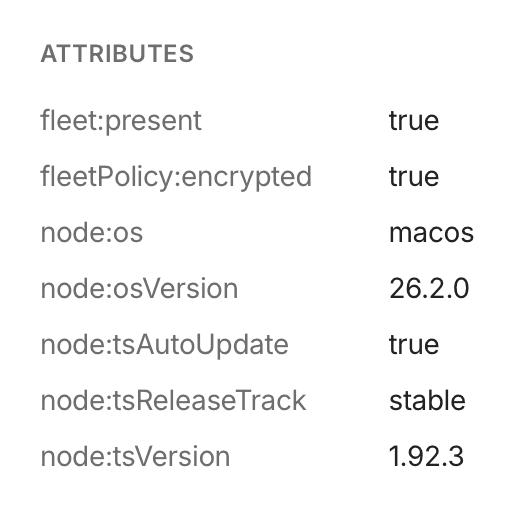
- Check the device attributes for the device in the Machine Details section. This section should include the set of
fleet:andfleetPolicy:attributes listed previously.
You can also check device attributes using the Tailscale API.
Adjust Tailscale access rules
After you set up the Fleet posture integration, and your devices have device posture attributes that reflect their signals as reported by Fleet, you can use those device posture attributes as part of your posture rules.
For example, to only permit access to tag:production from devices that are managed by Fleet, you can create a new posture and use it as part of a corresponding access rule:
"postures": {
  "posture:managed": [
    "fleet:present",
  ],
},
"grants": [
  {
    "src": ["autogroup:member"],
    "dst": ["tag:production"],
    "ip": ["*"],
    "srcPosture": ["posture:managed"]
  }
]
You can use the visual policy editor to manage your tailnet policy file. Refer to the visual editor reference for guidance on using the visual editor.
Schedule
For each configured integration, Tailscale will aim to sync device posture attributes every 15 minutes, with a few exceptions:
- Adding a new integration, or changing configuration of an existing one, will trigger an out-of-schedule sync.
- If an integration fails due to authentication error (usually caused by invalid credentials), it will be paused for up to 24 hours.
Audit log events
The following audit log events are added for device posture.
| Target | Action | Description |
|---|---|---|
| Integration | Create posture integration | A new posture integration was created |
| Integration | Update posture integration | A posture integration was updated |
| Integration | Removed posture integration | A posture integration was removed |
| Node | Update device attribute | Device posture attributes for a node were changed |