
Let connections continue when node keys expire
Last validated:
Session expiry lets you permit connections to certain resources on your Tailscale network (known as a tailnet) even when a device's login has expired.
How it works
Without session expiry, when a node key expires, the device's login also expires and the device disconnects from the tailnet completely. With session expiry, the device remains connected, and you can specify which connectivity remains and which connectivity ends by using a device posture attribute in your access controls. Specifically, a device with an active session will have a ts:activeSession boolean attribute assigned, with a value of true.
Every time Tailscale confirms user identity through an interactive authentication flow, it sets the expiry time for the session attribute to the current time plus the session duration. This happens on login, reauthentication, and SSH check mode.
To use session expiry, you will take the following steps:
- Decide how you will set up your tailnet policy file.
- Enable session expiry.
- Update your tailnet policy file.
Prerequisites
To enable and configure session expiry, you must meet the following prerequisites:
- You need to be an Owner or Admin of the tailnet.
- You need an understanding of access control lists (ACLs) or grants, depending on which you use for your tailnet policy file.
- You need an understanding of postures and posture conditions.
Not required, but recommended:
- Install the unstable version of the Tailscale client. We will be adding new features to the client to better support session expiry throughout the alpha. You will receive those changes much faster by using the unstable client.
Determine your tailnet policy file changes
Before you enable session expiry, determine how you will configure your tailnet policy file. In either ACLs or grants, use the ts:activeSession posture attribute to determine which resources require an active session to connect to, and which do not.
There are three different scenarios related to session expiry:
- Infrastructure (tagged nodes): Tagged nodes do not have sessions and do not expire. You don't need to do anything for these nodes to remain connected, in regards to node key expiry.
- Human-owned to restricted access: These will be altered to require the active session attribute.
- Human-owned to unrestricted access: These will remain the same and will grant access even when a session has expired.
Each scenario has a different impact in the tailnet policy file.
Using the following ACLs as an example:
"acls": [
  {
    "action": "accept",
    "src": ["tag:prod"],
    "dst": ["tag:prod:*"],
  },
  {
    "action":     "accept",
    "src":        ["autogroup:member"],
    "dst":        ["tag:prod:*"],
    "srcPosture": ["posture:goodScore"],
  },
  {
    "action":     "accept",
    "src":        ["autogroup:member"],
    "dst":        ["tag:dev:*"],
  },
  {
    "action":     "accept",
    "src":        ["autogroup:member"],
    "dst":        ["tag:helpdesk:*"],
  },
],

"postures": {
  "posture:goodScore": ["custom:edrScore > 80"],
},
You can use the visual policy editor to manage your tailnet policy file. Refer to the visual editor reference for guidance on using the visual editor.
The first rule is for machine-to-machine access, so leave it exactly as it is:
{
  "action": "accept",
  "src": ["tag:prod"],
  "dst": ["tag:prod:*"]
},
You can use the visual policy editor to manage your tailnet policy file. Refer to the visual editor reference for guidance on using the visual editor.
The second rule is for human access to restricted machines:
"acls": [
  {
    "action":     "accept",
    "src":        ["autogroup:member"],
    "dst":        ["tag:prod:*"],
    "srcPosture": ["posture:goodScore"],
  },
],

"postures": {
  "posture:goodScore": ["custom:edrScore > 80"],
},
You can use the visual policy editor to manage your tailnet policy file. Refer to the visual editor reference for guidance on using the visual editor.
The example above is a rule that does not yet require an active session to permit the connection. It already requires a posture (posture:goodScore), so modify that posture rule to also check the session attribute, ts:activeSession:
"acls": [
  {
    "action":     "accept",
    "src":        ["autogroup:member"],
    "dst":        ["tag:prod:*"],
    "srcPosture": ["posture:goodScore"],
  },
],

"postures": {
  "posture:goodScore": ["custom:edrScore > 80", "ts:activeSession"],
},
The third rule is for human access to machines, but currently without requiring a posture:
"acls": [
  {
    "action":     "accept",
    "src":        ["autogroup:member"],
    "dst":        ["tag:dev:*"],
  },
],

"postures": {
  "posture:goodScore": ["custom:edrScore > 80"],
},
You can use the visual policy editor to manage your tailnet policy file. Refer to the visual editor reference for guidance on using the visual editor.
To make this rule require a session, create a new posture and make it a requirement for this rule to pass:
"acls": [
  {
    "action":     "accept",
    "src":        ["autogroup:member"],
    "dst":        ["tag:dev:*"],
    "srcPosture": ["posture:hasSession"],
  },
],

"postures": {
  "posture:goodScore": ["custom:edrScore > 80", "ts:activeSession"],
  "posture:hasSession": ["ts:activeSession"],
},
The fourth rule is for human access to the helpdesk services:
{
  "action":     "accept",
  "src":        ["autogroup:member"],
  "dst":        ["tag:helpdesk:*"],
},
You can use the visual policy editor to manage your tailnet policy file. Refer to the visual editor reference for guidance on using the visual editor.
This rules grants access without requiring a session, and doesn't need to change. For example, if someone is having issues logging in and needs help, because this rule does not require a session, the rule lets nodes with expired node keys still connect to helpdesk resources.
Putting all of these changes together, the ACLs in this tailnet policy file should look like:
"acls": [
  {
    "action": "accept",
    "src": ["tag:prod"],
    "dst": ["tag:prod:*"]
  },
  {
    "action":     "accept",
    "src":        ["autogroup:member"],
    "dst":        ["tag:prod:*"],
    "srcPosture": ["posture:goodScore"],
  },
  {
    "action":     "accept",
    "src":        ["autogroup:member"],
    "dst":        ["tag:dev:*"],
    "srcPosture": ["posture:hasSession"],
  },
  {
    "action":     "accept",
    "src":        ["autogroup:member"],
    "dst":        ["tag:helpdesk:*"],
  },
],

  "postures": {
    "posture:goodScore": ["custom:edrScore > 80", "ts:activeSession"],
    "posture:hasSession": ["ts:activeSession"],
  },
You can use the visual policy editor to manage your tailnet policy file. Refer to the visual editor reference for guidance on using the visual editor.
In summary, this tailnet policy file:
- Lets machines-to-machine connections remain connected.
- Requires an active session to access any resource on the tailnet except for the
helpdesksystems. - Lets users access
helpdeskresources when their node key expires.
In contrast to the previous configuration using node key expiry, the difference is users can access helpdesk resources even when their node key has expired and they cannot renew it.
Now that your tailnet policy file is ready, enable session expiry.
Enable session expiry
-
Open the Device management page of the admin console.
-
Scroll to the User Session Expiry section.
-
Select Switch to session expiry to enable session expiry:
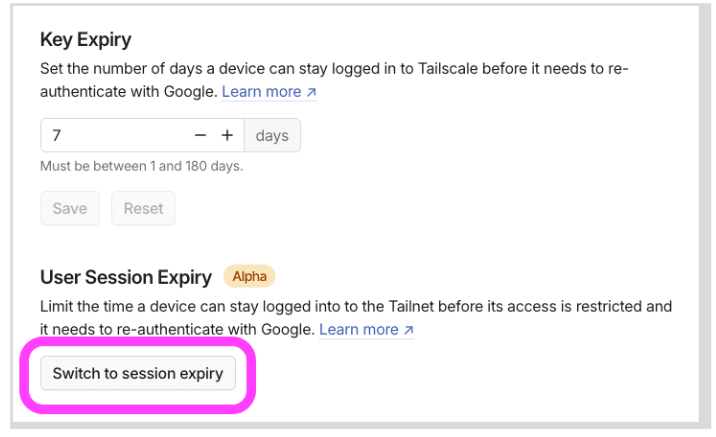
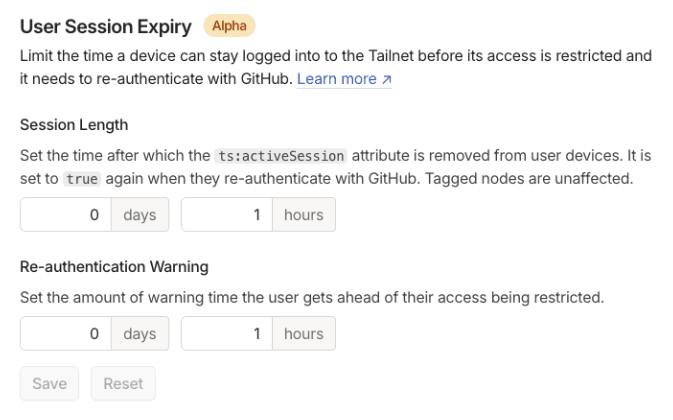
When you select Switch to session expiry, Tailscale immediately writes the ts:activeSession attribute to all devices on the tailnet. The ts:activeSession attribute has an expiry time equal to the session duration, which by default is the same as the previous node key expiry time. If you want to switch to a shorter expiry time as well as switching to session expiry, you need to first reduce the node key expiry to your intended session duration, and then switch to session expiry.
With session expiry enabled, you can update the session length:
Update your tailnet policy file
Now that you have enabled session expiry, replace your ACLs with the changes you decided on in the determine your tailnet policy file step.
Session expiry is now enabled and running in your tailnet.
Session expiry and warnings
When a session expires, Tailscale removes the ts:activeSession attribute from the device in question, and any ACL or grant rules that required a posture with this attribute no longer match.
From the device's perspective, it cannot connect to anything on the tailnet that requires a session. A browser tab automatically opens, prompting the user to log in to Tailscale again to resume connectivity.
We are still in the process of implementing preemptive warnings about expiring sessions. When testing this feature, we recommend using the unstable version of the Tailscale client so you can receive updates more regularly.
Notes
Although not a guarantee, we plan to implement the following:
- Preemptive re-authentication: the Tailscale client will open a re-auth browser URL when a certain amount of time remains before session expires. This will let a user to extend their session before it expires.
- Health warning in the client: when the session reaches expiry (or has expired), in addition to opening a browser tab, Tailscale client will show a warning message and will change the tray icon.
Later, we will expand the feature to make the warnings selectable to start a reauthentication flow.