Access remote desktops using Windows RDP
Sometimes you need to access a remote Windows PC from another location. You might be working remotely and need to reach your office computer, or you may need to help someone troubleshoot their PC without being there in person.
Windows Remote Desktop Protocol (RDP) lets you connect to a remote Windows PC and use it as if you were sitting in front of it. Typically, setting up Windows RDP requires exposing ports on your network and configuring firewall rules to connect securely across the internet. These steps can be complex and introduce potential security risks.
With Tailscale, your devices automatically join a secure, encrypted network where they can reach each other directly, without manual port forwarding or public IPs. Once connected through your Tailscale network (known as a tailnet), you can access a remote Windows PC as if the devices were on the same local network.
Prerequisites
To follow this guide, you need:
- A computer running a Windows Professional, Enterprise, Education edition, or Windows Server edition. This is the Windows PC that you'll connect to remotely.
- Another computer for connecting to tailnet and the remote Windows PC. This does not need to be running Windows but must be capable of using a compatible remote desktop application for connecting to the remote Windows PC.
- An email account that uses a single sign-on (SSO) identity provider, such as Apple, Google, or Microsoft.
Step 1: Install Tailscale and create your tailnet
Installing Tailscale on your first device and authenticating automatically creates your tailnet.
To connect to a remote Windows PC with RDP, you need the Tailscale client installed on at least two devices. You need the remote Windows PC you want to access and the device you'll connect from.
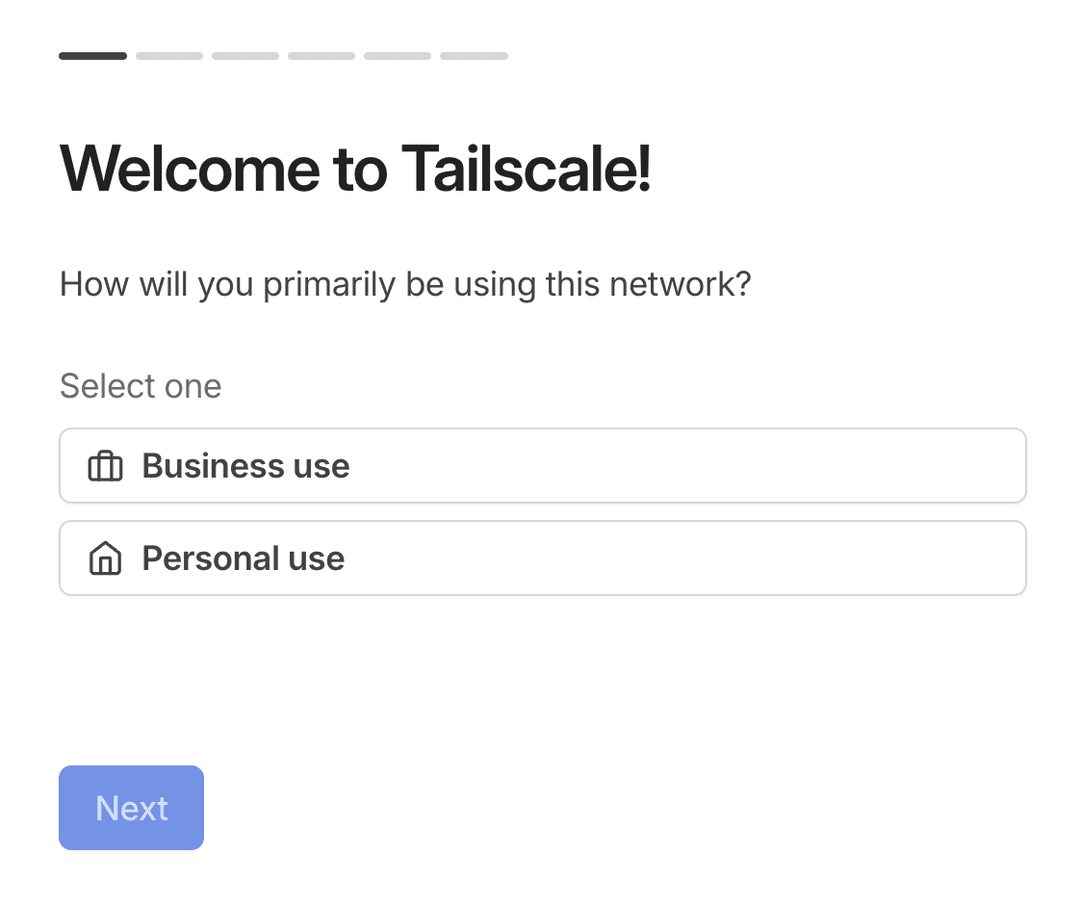
Download the Tailscale client for your device and install it. When you launch the app, log in using an existing identity provider such as Apple, Google, or Microsoft. Choose the Personal option and follow the remaining instructions to complete the process. Your tailnet is now configured and ready to use.
Go to the Machines page of the admin console and confirm your device connects to your tailnet. The admin console lets you manage the users, devices, and permissions for your tailnet.
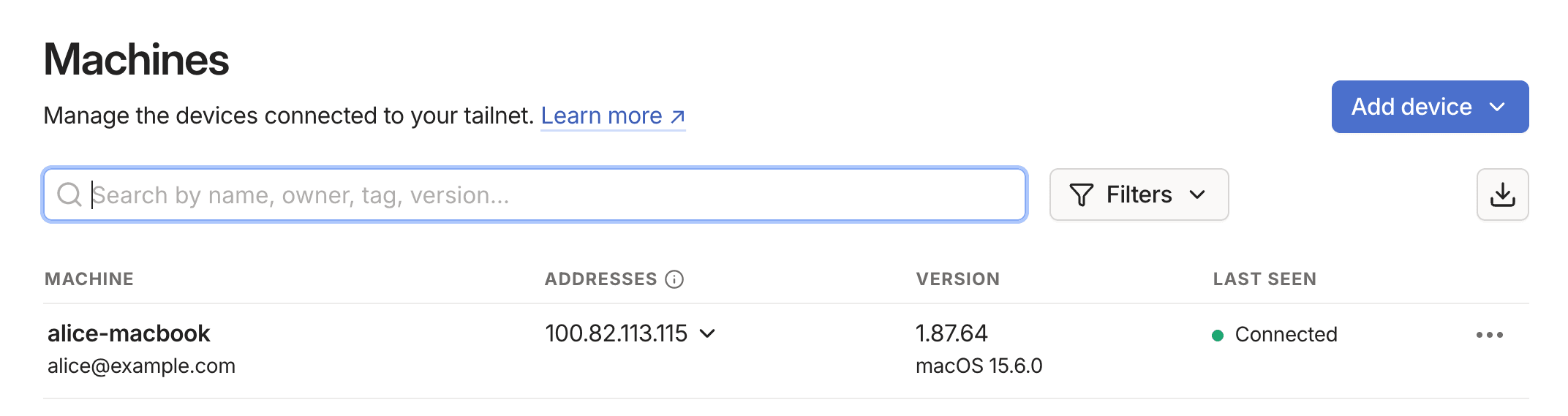
Now download and install the Tailscale client on your other devices. For each device you add to your tailnet, log in using your identity provider from a web browser. After the confirmation screen displays, verify the device appears in the Machines page of the admin console.
Step 2: (Optional) Manage key expiry
Devices in a tailnet periodically re-authenticate to stay secure through device key expiry, which requires re-authentication after a set period. For devices that should remain continuously connected, such as servers, Raspberry Pis, media centers, smart home hubs, Docker hosts, and NAS devices, you can disable key expiry to avoid any unnecessary disruptions.
To disable key expiry for a device, go to the Machines page of the admin console, select the  icon next to the device, then select Disable key expiry.
Disabling key expiry reduces security and can expose your network if the device or key is compromised. Only do this for trusted devices and revoke the key immediately if the device is lost or replaced. For more information, refer to Key expiry.
Next, you'll configure Windows RDP on the remote Windows PC.
Step 3: Configure Windows RDP
The instructions for configuring Windows RDP vary between Windows distributions. For the purposes of this topic, we'll describe the setup for Windows RDP on Windows 11 Pro. To configure Windows RDP on non-Windows 11 Pro PCs, refer to Enable Remote Desktop on your PC.
To enable Windows RDP, go to Settings, System, then select Remote Desktop. Then toggle Remote Desktop to On, and select Confirm.
If there are multiple accounts that you want to access on the remote Windows PC, select Remote Desktop users in the main Remote Desktop page. Select Add, Advanced, Find Now, select the users you want to add, then select OK. Then in the main Remote Desktop users dialog, select OK to confirm.
If you want to make the remote Windows PC reachable after a reboot, you can enable Unattended mode. Otherwise, a user will need to log in to the device after each reboot, either in person or through other means.
Select the Tailscale icon in the Windows system tray, then Preferences, and Run Unattended. Then select Yes to confirm.
Next, you'll install software on the device you'll use to connect to the remote Windows PC.
Step 4: Install an RDP app on other devices
To connect to the remote Windows PC from another device in your tailnet, you need to install an application on the device you want to connect from. The following is a list of known supported platforms and suggested apps for each one:
| Platform | Recommended apps |
|---|---|
| macOS | Windows App |
| Windows | Use the built-in Desktop Connection app |
| Linux | FreeRDP, Remmina, GNOME Connections |
| iOS | Windows App Mobile |
| Android | Windows App |
For more information about the supported platforms, installation and configuration instructions, refer to Get started with Windows App to connect to devices and apps.
Next, you'll connect to the remote Windows PC.
Step 5: Configure and connect to Windows RDP
To connect to a remote Windows PC over your tailnet, first find its Tailscale IP address. To do this, go to the Machines page of the admin console, locate the device, and copy the 100.x.x.x address. Alternatively, you can use the PC's tailnet hostname or MagicDNS name. Now you can configure the app and connect to the remote Windows PC using one of the following methods:
To add a remote Windows PC on macOS, open Windows App and select the + icon. In the PC name field, enter either the Tailscale IP or the MagicDNS name for the remote Windows PC, set the Credentials field to Ask when required, then select Add. In the Windows App, the newly created connection displays.
To connect to the remote Windows PC, right-click on the connection you created and select Connect. Enter the credentials for the remote Windows PC if necessary, then select Continue.
When using any of the apps above, a warning message may display indicating that the computer you are connecting to might not be trusted. If this is a computer you own and trust, you can safely ignore this message. If you're unsure, check with your IT administrator.
If you are trying to connecting to the remote Windows PC from a Windows domain and encounter issues, refer to the Windows section of our troubleshooting content.
Now you can remotely and securely access a remote Windows PC over your tailnet, as if you were physically in front of it.
Conclusion
In this guide, you configured Windows RDP with Tailscale to create a secure and private connection between devices. Using your tailnet, you can connect to a remote Windows PC without exposing ports or managing network configurations. This setup keeps your remote sessions encrypted and reliable, providing direct access to your desktop environment wherever you are.
Further exploration
- Invite other users to your tailnet to let them route their device traffic.
- Configure ad blocking for your tailnet using Raspberry Pi, Control D, or NextDNS.
- Configure a device in your tailnet to route your tailnet traffic for secure browsing wherever you are.
- Configure a device in your tailnet as a subnet router to remotely access home network devices that don't have Tailscale installed, such as printers or smart home devices.