
Setting up a custom Microsoft Entra application to work with Tailscale
Last validated:
To set up a new Microsoft enterprise application for use with Tailscale follow these steps. These steps are for customers who are using an alternate environment (such as Azure Government), or who need to set up a custom Microsoft Entra application for some other reason.
The screenshots and links featured in this topic are for Azure Commercial. Adapt as necessary for other Azure environments.
Customers using the standard commercial version of Azure should typically follow the standard Microsoft Entra ID instructions.
Create a new Microsoft Entra application
-
Create a new Enterprise Application in the Azure Portal.
-
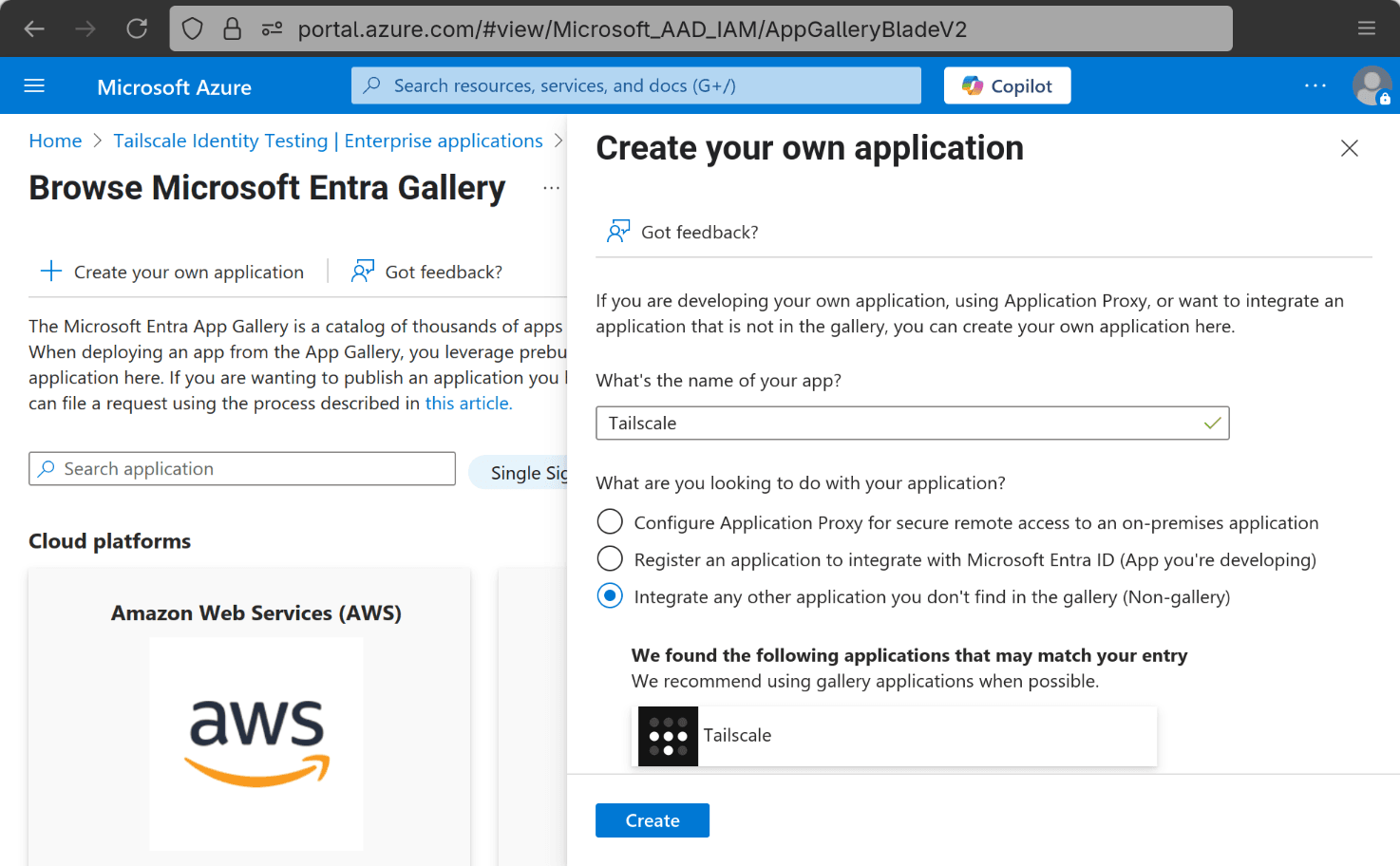
From the Entra App Gallery, select Create your own application at the top left of the page.
-
Enter an application name.
-
Select Create.
-
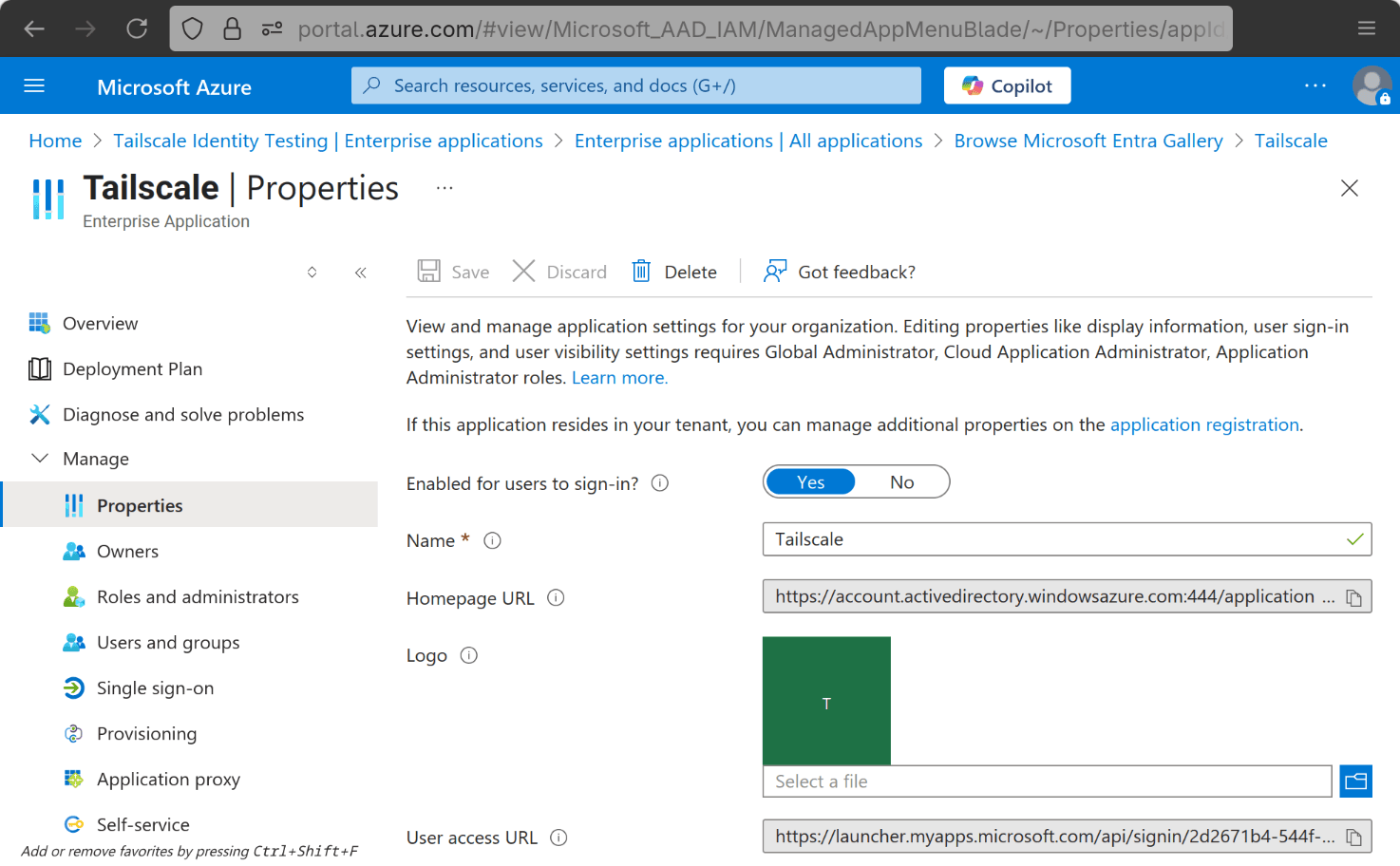
Select Manage and then Properties in the sidebar.
-
Configure the application as desired on this page (whether to require user assignment and so on).
-
Select application registration in the second paragraph at the top of the page.
-
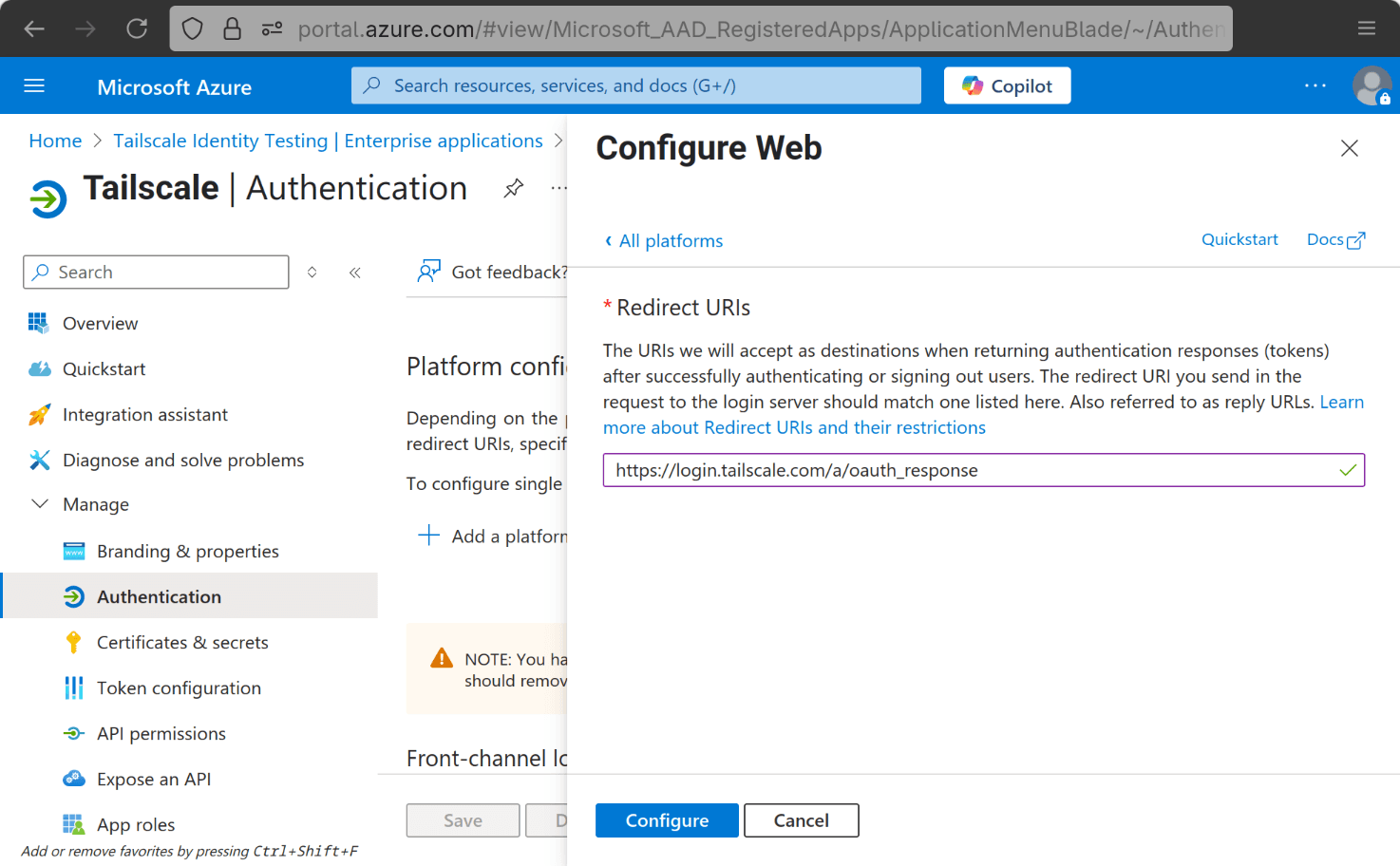
On the following page, select Manage and then Authentication in the sidebar.
-
Select Add a platform and then Web.
-
Enter the Redirect URL:
https://login.tailscale.com/a/oauth_response. -
Select Configure.
-
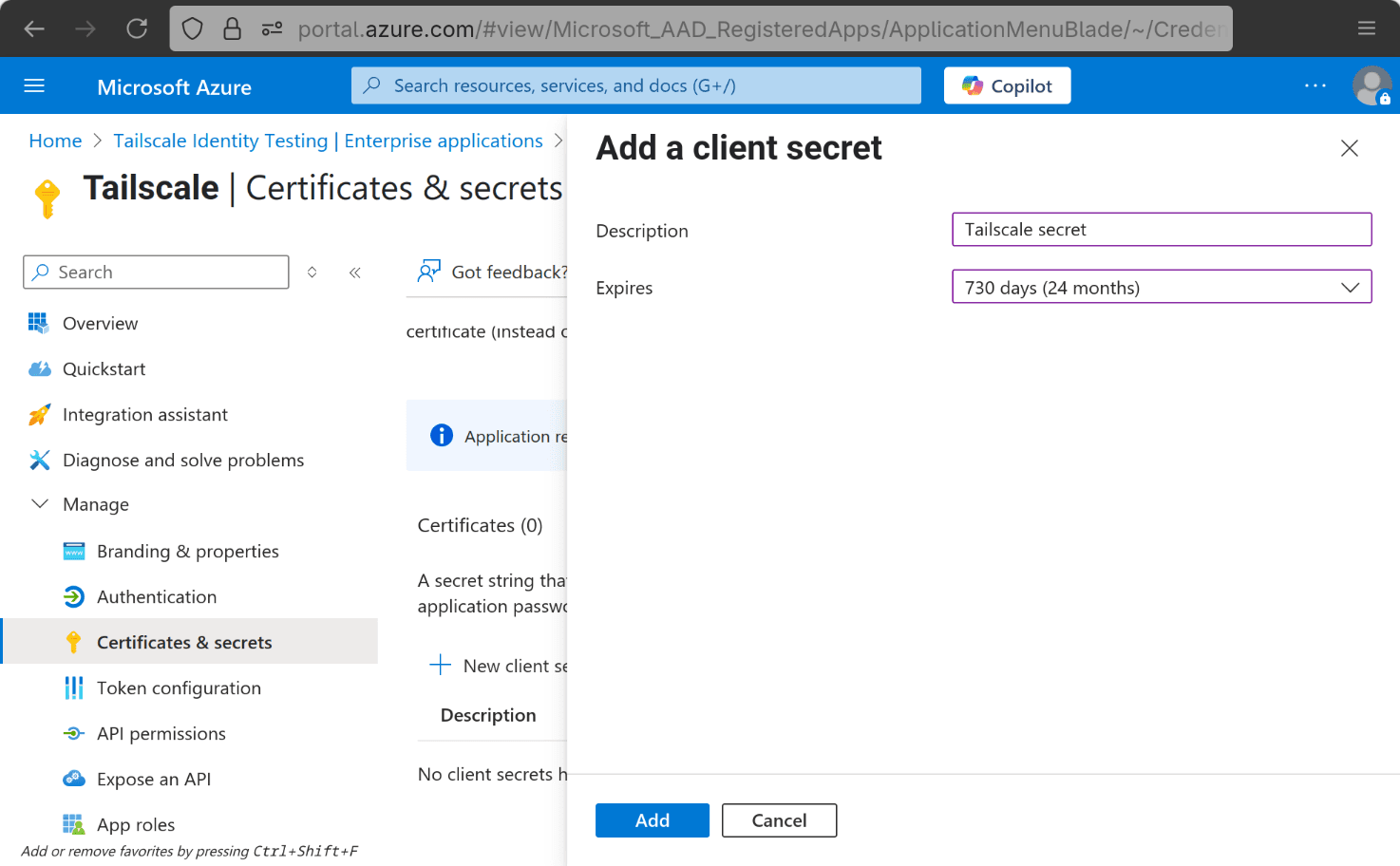
Select Certificates & secrets in the sidebar.
-
Select New client secret.
-
Enter a description and an expiration date.
Entra only supports an expiration date of up to 2 years. You will have to create a new credential and provide it to Tailscale before this date.
-
Select Add.
-
Take note of the Secret Value on the next screen to share with Tailscale Support later.
-
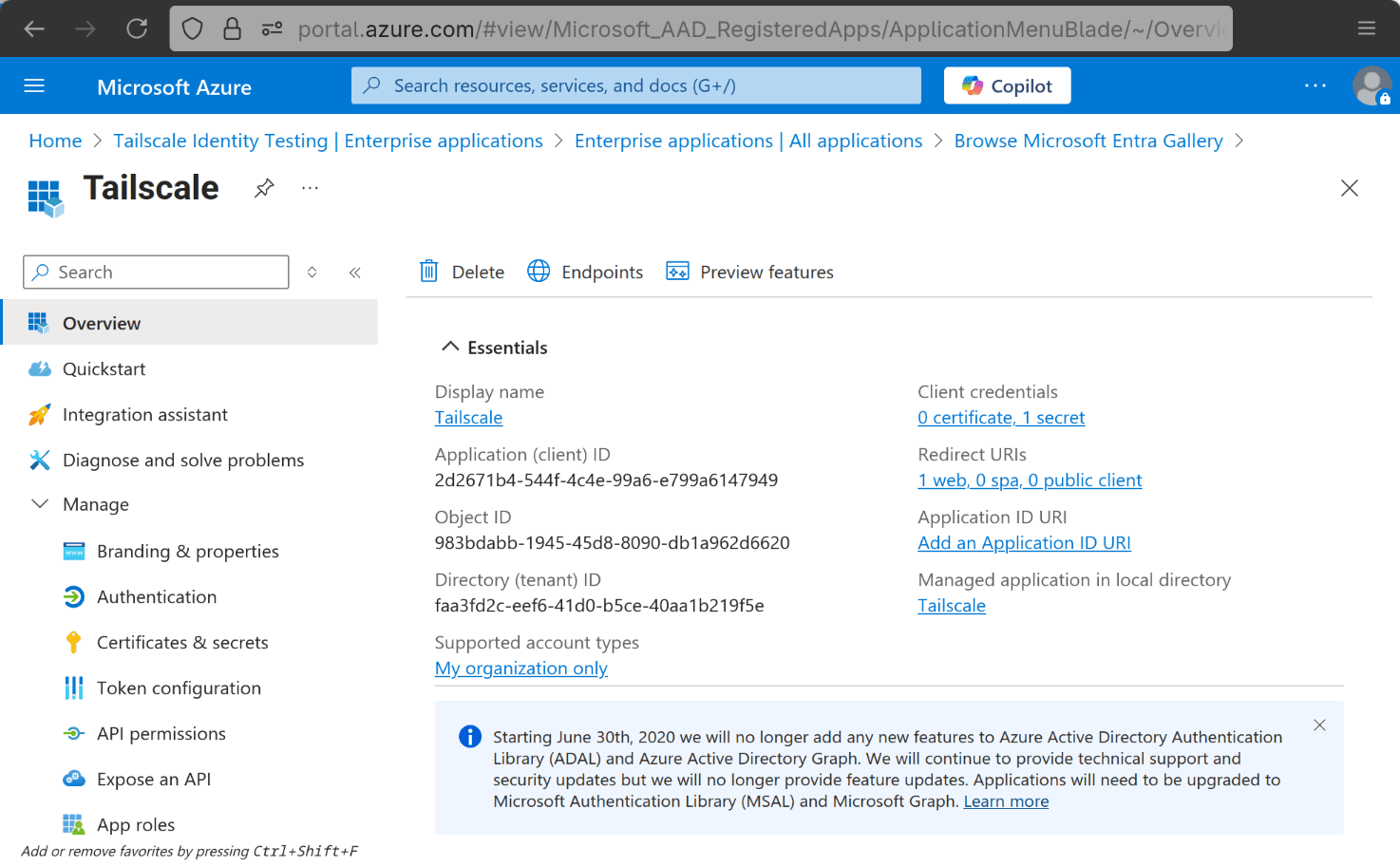
Select Overview in the sidebar.
-
Take note of both the Application (client) ID and the Directory (tenant) ID to share with Tailscale Support later.
Open a Tailscale support ticket
-
Open a ticket with Tailscale Support to create or change your identity provider.
-
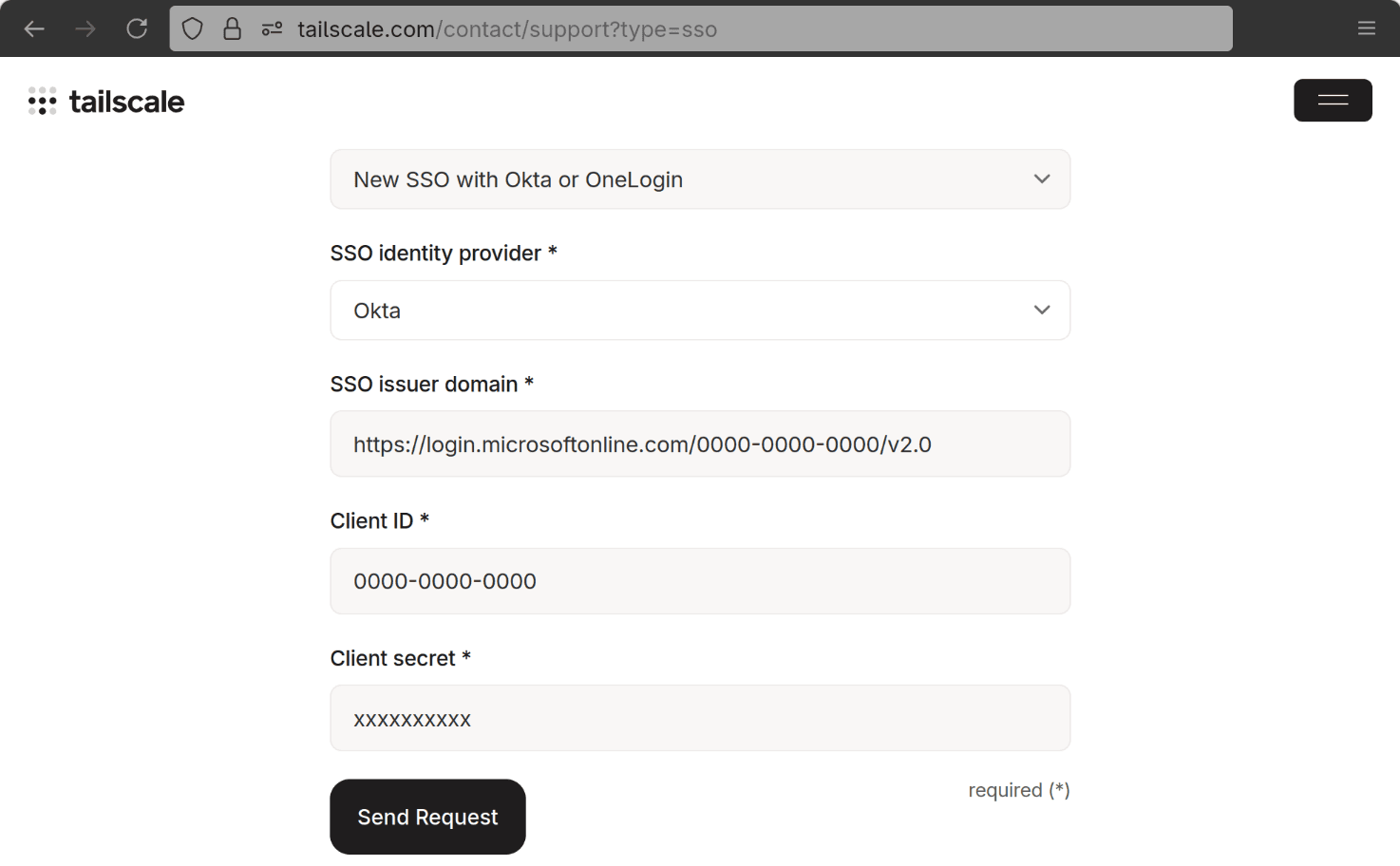
Select New SSO with Okta or OneLogin.
-
Set the SSO identity provider to Okta.
Tailscale Support will be able to determine that the request is for Microsoft and not Okta.
-
Add the SSO issuer domain:
https://login.microsoftonline.com/{tenantID}/v2.0For Azure Government, use the
login.microsoftonline.usdomain.Replace
{tenantID}with your "Directory (tenant) ID". -
Add the Client ID - your "Application (client) ID".
-
Add the Client secret - your Secret Value.
(Optional) Configure SCIM provisioning
Refer to the System for Cross-domain Identity Management (SCIM) with a standard Entra ID topic to perform steps for other administrative functionality.
Enable Provisioning
In Tailscale
You need to be an Owner, Admin, or IT admin in Tailscale to complete these steps.
Generate a SCIM API key
-
In the User management page of the admin console, under SCIM Provisioning, select Enable Provisioning.
-
Copy the generated key to the clipboard.
In Azure Portal
-
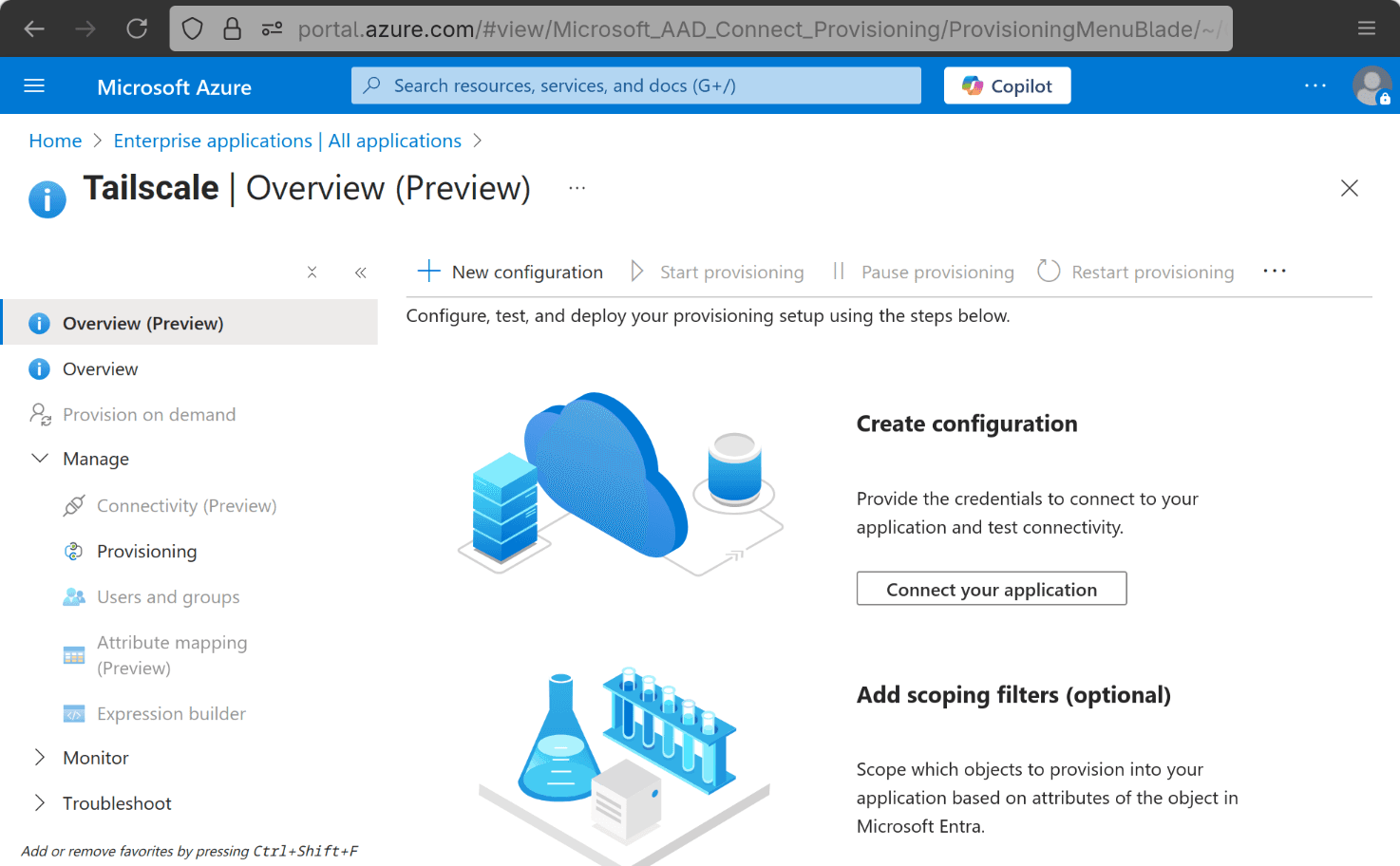
In the application Overview page, under Manage in the sidebar, select Provisioning.
-
Select Connect your application.
-
Under Admin Credentials, for Tenant URL, enter:
https://controlplane.tailscale.com/scim/v2/?aadOptscim062020The trailing parameter,
?aadOptscim062020, is required. For information about this parameter, see the Microsoft Entra ID topic Flags to alter the SCIM behavior. -
For Secret Token, enter the SCIM API key that you generated in the Tailscale admin console.