This post is part of an occasional series highlighting applications and services that work quite well with ("+") Tailscale.
Tailscale + Paperless-ngx: scan everything, expose nothing
Author
 Kevin Purdy
I thought I had a good-enough system for my tax records and other important papers: a plastic bin, on a high shelf, perfectly under-sized and over-loaded. What could go wrong?
Fate finally had enough of me, so I knocked it over a couple weeks back, reaching for a hat. This tax year mixed into last tax year, taxes into mortgage documents, mortgage into insurance co-pays. I didn’t say to myself “There has to be a better way,” because I’d long known there was. Inertia was just too strong, at least before gravity intervened.
Now that I’ve been brought down to earth, I’ve gone paperless—specifically paperless-ngx, bolstered with local AI and secured by Tailscale. With this self-hosted setup, I’ll send important papers in easily, store them securely, have them searchable by content, and, optionally, tagged and searched with plain language through local, private AI.
Would you also like to better secure and organize your important documents: W-2, 1099, EOB, FSA, all of it? In a system better than “Somewhere in Google Drive?” Secured so that nobody can reach it without a properly authenticated Tailscale connection?
Follow along and get yourself set up for next tax season, along with all of life’s “I know this form is here somewhere” moments. We’ll walk through:
- What kinds of hardware you can use
- How Tailscale makes your document access safer
- Setting up the containers
- Getting your paper into the system
- Adding AI tagging
- Going even further with tie-in services
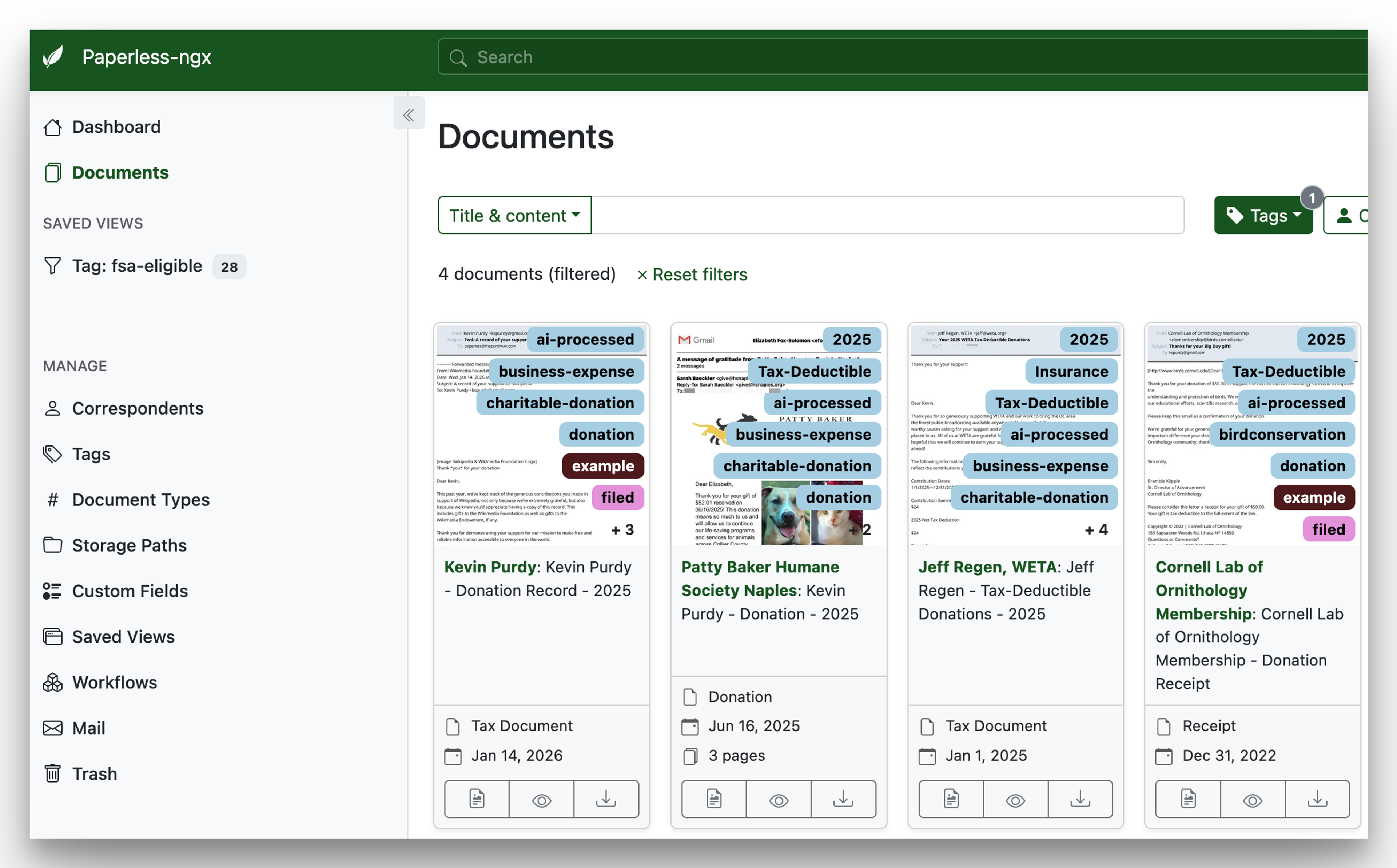
What we’re setting up
Paperless-ngx (or just “Paperless” from here on out) is a project that scales with your ambitions, from a laptop or Raspberry Pi you occasionally power up, all the way to a local-AI-connected home server. Here are three example “lanes” you could go down; all of them can be made accessible only through Tailscale.
- Minimal: A sometimes-on laptop, desktop, or always-on Raspberry Pi (with external storage or an M.2 hat); uploading with a phone (paper) or through the web interface (documents).
- Always-on: A NAS, mini PC, or other always-on device; uploading through a network “consume” folder and/or scanner; paperless-ai tagging optional.
- It’s go time: Home server with paperless-gpt-enhanced OCR and tagging, with input from email, SFTP, webhooks, or n8n.
Each of these setups requires a backup scheme of some kind; your documents get a lot less accessible if your storage drive dies. That backup system can look like:
- Backing up your documents to the cloud with rclone
- Using rsync or syncthing to mirror your files on another local system
- Sending an encrypted ZFS stream (via Tailscale!) to a trusted friend’s house
- Setting a quarterly calendar reminder named “Back up documents to big USB drive”
The 3-2-1 strategy is the best, but anything is better than nothing. Paperless has documentation on how to utilize its backup functions.
If you know already that you’re going well beyond the “Minimal” setup (and even at that level, honestly), you’ll want to self-host Paperless in a container. Luckily, you do not have to start from scratch; more on that below.
Why Tailscale belongs in whatever version you choose
However complex you want to get with Paperless, there’s one constant: do not open your important document archive to the public internet, even with a password on it. No software is immune to vulnerabilities, but most software isn't standing between bad actors and access to Social Security numbers, bank account numbers, or medical history.
A good Paperless set up is both wonderfully liberating and a one-stop identity theft depot. So we keep the important stuff behind the firewall.
Instead of figuring out the ports, certificates, and proxies needed (especially if you’re sourcing AI from a different device), Tailscale gives you one IP address that’s easy for you and trusted family to get to from anywhere. Everybody else gets nothing.
Install Tailscale on the device hosting Paperless, then use that device's Tailscale IP address (100.100.x.y) to access the device from anywhere while running Tailscale, typically at port 5000 (so 100.100.x.y:5000). If you enable MagicDNS, you can give that device a name that's easier to remember, like paperless:5000.
If you're setting up Paperless in a Docker container, read on.
Setting up the core Paperless stack (with ScaleTail)
Did you catch Alex’s video about ScaleTail? It’s a repository full of nifty apps you can host on your own hardware, each one with Tailscale baked in to provide an easier and more secure connection. As it happens, paperless-ngx was recently added to ScaleTail, which provides a nice starting point for our setup.
Even the most minimal Paperless setup is best served by setting up a Docker container. (It’s also a more secure route if you’re installing on a computer that has other apps on it). I won’t dive into a full how-to on setting up Docker on your system (though Alex has that video, too). But using this ScaleTail “sidecar” configuration (docs, blog post) of Paperless generally involves editing the .env file, editing the compose file, and checking the logs to spot any problems.
ScaleTail’s compose file provides a very basic Paperless setup; it works great if you're mostly uploading PDFs. There are two more Paperless pieces that I, along with Techno Tim, find very useful: Gotenberg and Tika. Gotenberg converts many file types to PDF, and Tika (technically Apache Tika) helps pull text from both PDF and non-PDF formats. Together, they make it possible to import files that Paperless alone can’t tackle: Word and Excel and PowerPoint files, HTML, and—perhaps most importantly—the .eml files it pulls from your email account.
Techno Tim’s post offers a walkthrough for setting up and configuring a Paperless container, both with and without the local AI pieces.
I’ve patched together a template Docker compose file that has a paperless-ngx, Gotenberg and Tika, and a Tailscale sidecar: it's the -noai version, remove that bit after .yml and then edit it. Everyone’s Docker setup is a bit different, but it might help you (and an LLM assistant, if that’s your thing) get started. Speaking of LLMs, if you’re keen on using a local assistant with Paperless, I’ll share a version with that stuff baked in later on.
Once everything is up and running, you can reach paperless by connecting to your Tailscale network (tailnet), then heading to https://paperless.your-tailnet.ts.net, replacing paperless with whatever hostname you configured, and your-tailnet with your tailnet URL (presuming you’ve turned on MagicDNS in your console). You can see this URL in your Tailscale admin console on the web. Other users on your tailnet can reach it there, too; if you share it to other Tailscale users, they’ll need to use the Tailscale IP address (100.100.x.y).
Getting paperless some paper
Paperless can handle emails and downloaded PDFs, sure, but it shines when it comes to the remnant bits of paper still present in your life. On its own, it can do basic optical character recognition (OCR) on documents, pulling out machine-readable text that you can search for later. With that text, you can trigger workflows, like sending any document that includes “1099” into a tax folder, or “Explanation of benefits” and “EOB” into “medical.”
If you want to work in batches, you can launch Paperless and upload through its web interface. Most people (or most people reading this far into a guide about self-hosting a DIY archive tool, anyways) will want Paperless to monitor a space and pull documents from it. You’ve got options, including:
- A folder (“consume”) that Paperless watches constantly
- Connecting Paperless to an email account and having it watch certain folders or labels, or grab forwarded messages to one address
- Paperless-connected mobile apps, particularly paperless-mobile and Swift Paperless
- Scanning apps like Google Drive, Microsoft OneDrive, and Apple Notes
- Anything you can hook up to its API, including n8n and other automation tools
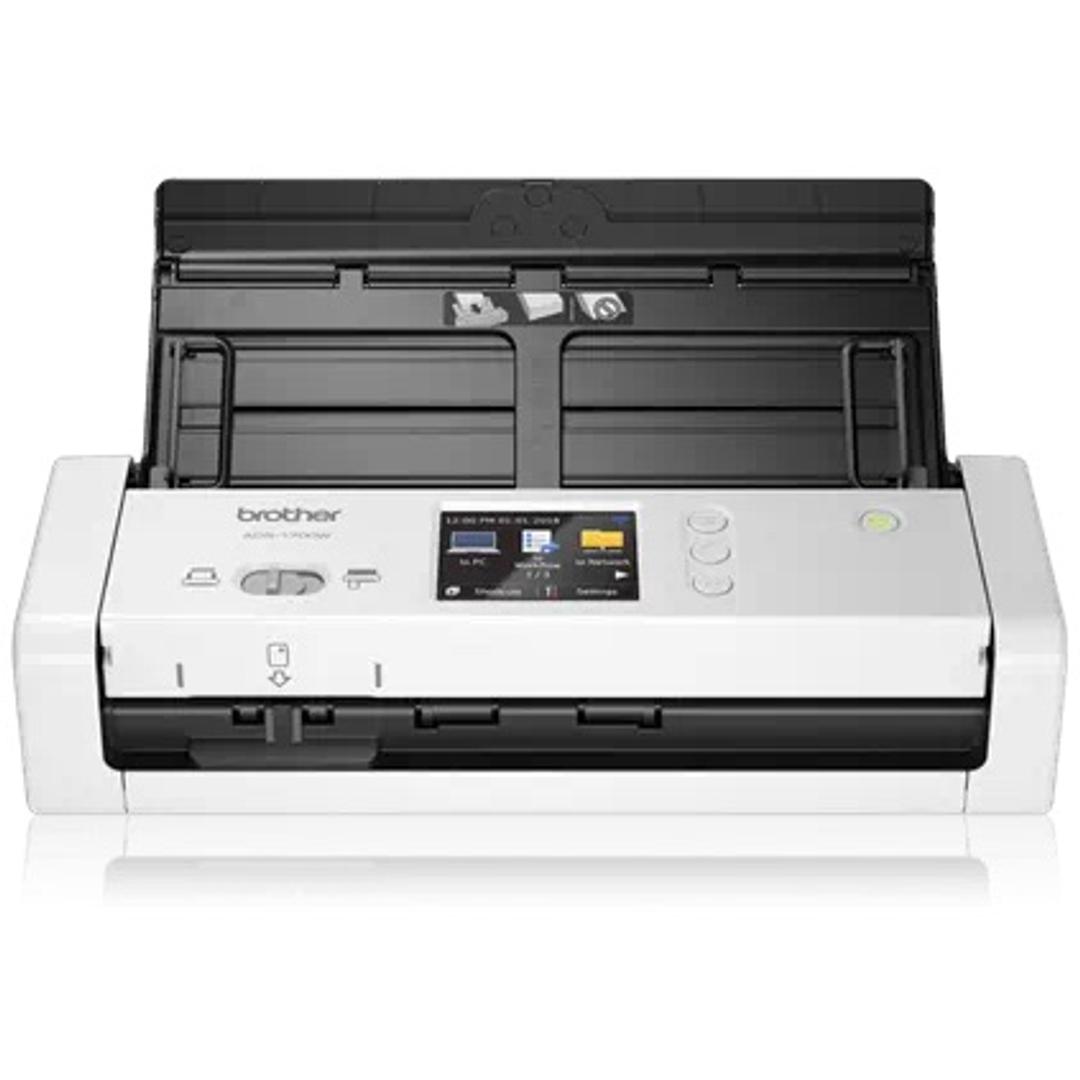
If you’ve got an actual scanner hanging around, lots of popular models work with Paperless. I plugged in a Brother ADS-1700W that had been gathering dust for years. After messing with its web settings and tiny LCD screen, I had it sending documents directly to Paperless’ consume folder with the press of one (squishy screen) button.
Paperless took an afternoon for me to set up—making the Brother printer scan directly into a Samba folder, surprisingly or not, was the biggest lift. But, now? I can find that one X-ray bill from any of my Tailscale-connected devices, including my phone, rather than braving my medical provider’s labyrinthine website again.
So Paperless alone is a big upgrade, but it cannot magically boost your willpower to properly tag and categorize every document you toss in. Which is exactly where local AI comes in.
Optional local AI with paperless-ai, and Ollama or LM Studio
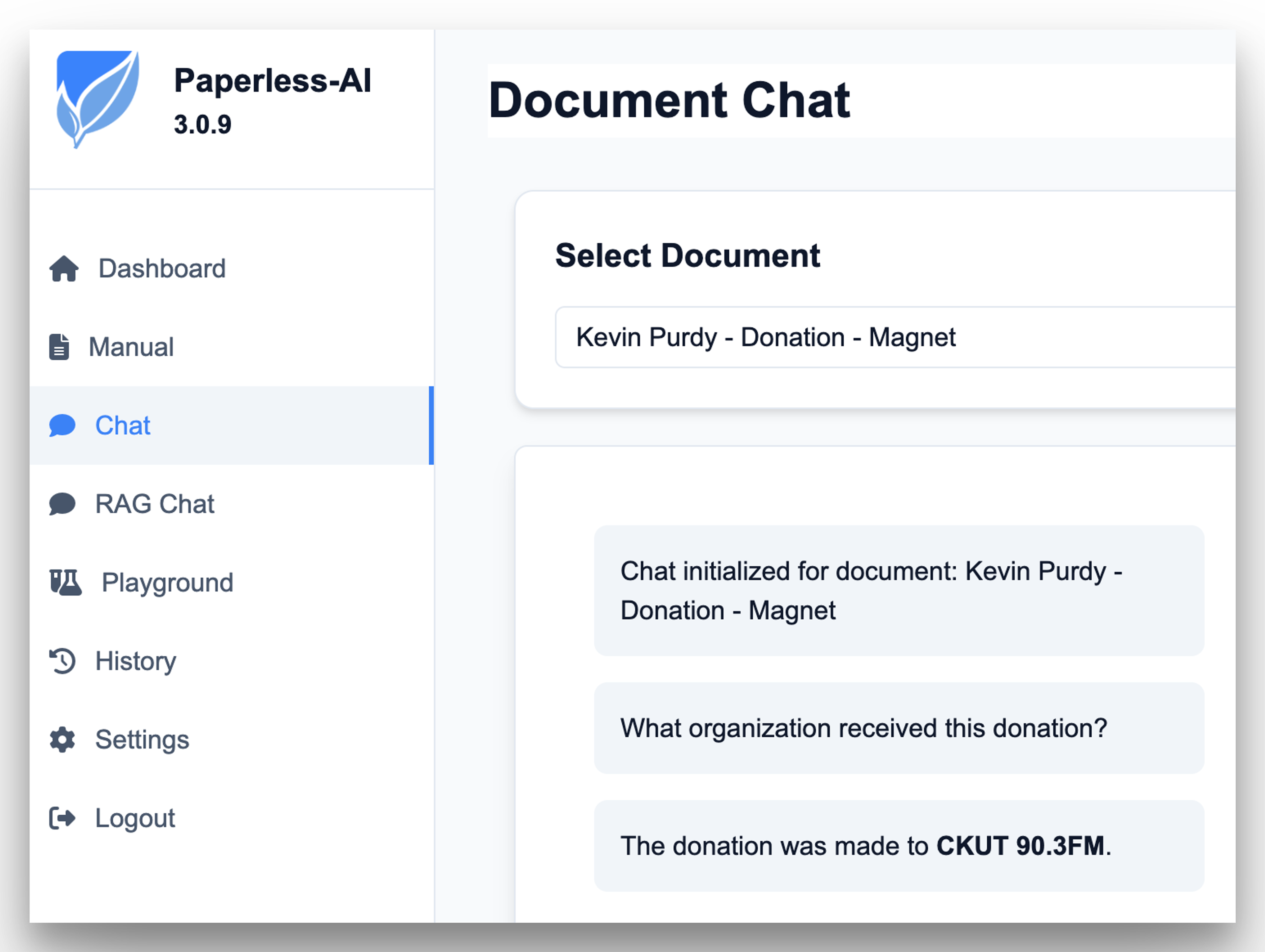
If Paperless is a librarian, Paperless-ai is its less buttoned-up cousin, the one who pulls up to the family reunion on a DIY e-bike. Paperless-ai sits alongside your main Paperless server, watching for new documents to show up. Once they do, it looks at the OCR-derived data, then tries to add helpful context: who made this document, what kind of document is it, and what tags would help you find and categorize it.
To give paperless-ai some local AI, you need a tool to pull and run a model. Ollama and LM Studio are good places to start. Ollama is a more service-like, terminal-minded app, while LM Studio offers a more fully fledged desktop app (along with a headless server model). Any reasonably modern desktop, Mac mini, or other always-on machine works for hosting this server. Ollama offers a quickstart guide, but no particular guidance on picking a model. LM Studio provides a walkthrough, and more guidance in the app on choosing a model your machine can realistically handle.
If Paperless is running on the same machine as your AI model, grab the local address (“localhost,” or 127.0.0.1) from Ollama or LM Studio (making sure to enable the local server option in LM Studio). If you're running AI on a different machine than your Paperless setup, install Tailscale on both the Paperless and AI devices, then point Paperless at that AI device’s Tailscale IP address and your Ollama/LM Studio port (11434 or 1234 respectively). You can harden this system by blocking that Ollama or LM Studio port to everything except the Tailscale interface; the details will vary across systems and setups.
After launching paperless-ai, you might find it impressive, weird, or both. It can rather quickly tag and categorize documents that might have taken you hours to get through yourself, and it’s pretty good at creating its own groupings, like “tax-deductible” and “fsa-eligible.” But over time, it may create unnecessarily niche tags or categories, and develop what I call “obsessions” with certain names and correspondents. You’ll have to occasionally refine and tune paperless-ai by correcting its output, tuning its base prompt (a text description of what you want done), and perhaps changing models over time.
A note about paperless-ai’s “RAG Chat” feature, which purports to let you ask plain language questions about your documents: it has been very hit-and-miss (and often just miss-and-miss) for me. Your mileage may vary with your models and documents, but I wouldn’t make any notable life decisions based on its output.
Paperless-ai's lead maintainer put up a notice last month that they are not updating the project while they work on a major rewrite; they also note that an "official AI integration in Paperless-ngx itself" might put the project out entirely. If that happens, paperless-gpt would be the likely replacement. Speaking of which:
How much less paper can you get?
Once you’ve got Paperless ingesting, scanning, and maybe AI-labeling your documents, you can be happy with what you’ve staked out, or keep exploring. A few waypoints you might look toward:
- Paperless-gpt uses an LLM to automatically add titles and tags, like paperless-ai, but also applies vision-based OCR, helping with tricky documents, watermarks, sideways text, and more. It can work alongside paperless-ai, or replace it for document-sorting purposes.
- Paperless-ngx-postprocessor offers more custom script powers for doing things based on what’s inside your documents
- Setting up n8n workflows to do just about anything with paperless: automatic backups to anywhere, notifications, webhooks, you name it.
- Set up rclone to automatically grab any document you place in a cloud storage folder, like Google Drive or Dropbox
If you’re running Paperless for more than just two or three people, you could also use Tailscale’s identity provider, tsidp, to set up no-password authentication. Casey Liss has a post detailing his Paperless/tsidp setup on his blog.
Setting up Paperless and some of its extensions has given me a sense of peace about my important documents. The project has given me a foothold into small-scale local AI. And that box? It has found a much better use: holding all my little paper notebooks full of idle scribblings.
I had been interested in Paperless ever since a member of Tailscale’s subreddit shared their story of helping out a sibling dealing with lots of family paperwork. It lived up to the promise.
Has Paperless changed how you handle your paperwork? What’s your full Paperless/Tailscale setup? Tell us about it on Reddit, Discord, Bluesky, Mastodon, or LinkedIn.
Share
Loading...


