Note: Newer versions of the primary (Mitanshu) Tailscale app for jailbroken Kindles allow for connecting to other Tailscale devices through a proxy, as detailed in a later post. This post has been edited to clarify that distinction.
Let's put Tailscale on a jailbroken Kindle
Author
 Kevin Purdy
“It’s a rite of passage to run Tailscale on weird devices.”
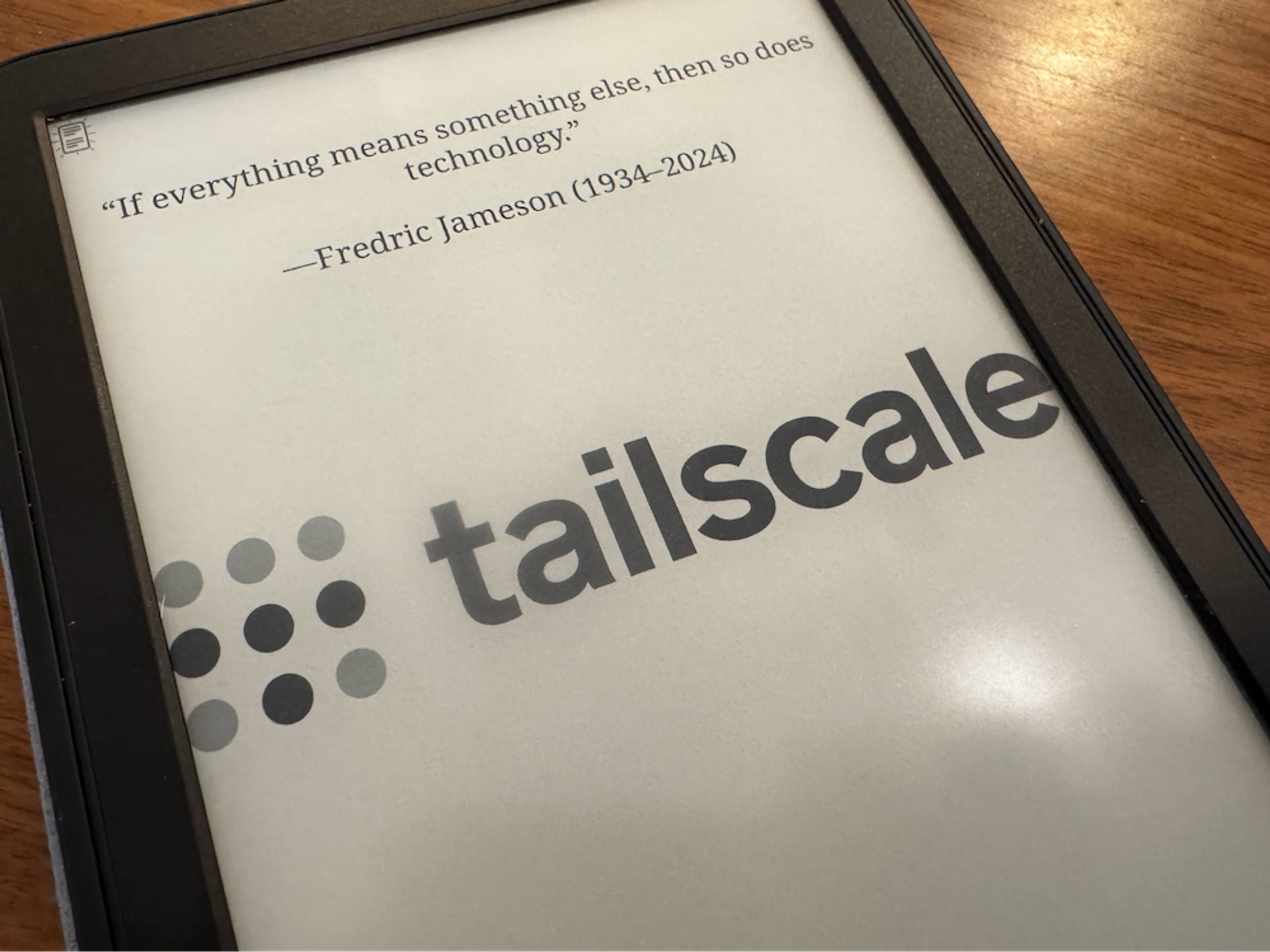
So writes Mitanshu Sukhwani on his blog, detailing the steps for getting Tailscale onto a jailbroken Kindle. Getting there, and seeing a kindle entry with a satisfying green dot in your Tailscale admin console, takes some doing. But take the trip, and you’ll end up with an e-reader that can run some neat unofficial apps, and is more open to third-party and DRM-free ebooks. And with a Tailscale connection, it’s easier to connect to files and a command line on your underpowered little Linux slab.
“For me, it's the freedom of being able to do anything with the device I own,” Sukhwani writes by email. “What I can do with the freedom is a different story.”
What is a jailbroken Kindle, exactly?
Jailbreaking refers to removing the software restrictions on a device put there by its maker. Getting around these restrictions, typically by gaining “root” or administrative access, allows for accessing operating system internals, running unapproved software, and generally doing more things than a manufacturer intended. With the Kindle, you still get the standard Kindle reading experience, including Amazon's store and the ability to send the Kindle books from apps like Libby. You just add many more options, too.
The term gained purchase after the first iPhone’s debut in mid-2007; since then, nearly every device with a restricted environment has gained its own jailbreaking scene, including Kindles (debuting five months after the iPhone).
Kindle jailbreaks come along every so often. Right now, an unlocking scheme based on Amazon’s own lockscreen ads, “AdBreak,” is available for all but the most up-to-date Kindles (earlier than firmware version 5.18.5.0.2). I know this because I wrote this paragraph and the next on my 11th-generation Kindle, using the open-source Textadept editor, a Bluetooth keyboard, and Tailscale to move this draft file around.
One paragraph doesn’t seem that impressive until you consider that on a standard Kindle, you cannot do any of that. Transferring files by SSH, or Taildrop, is certainly not allowed. And that’s in addition to other upgrades you can get by jailbreaking a Kindle, including the feature-rich, customizable e-reader KOReader, and lots of little apps available in repositories like KindleForge.
If your Kindle has been connected to Wi-Fi all this time (as of early December 2025), it may have automatically updated itself and no longer be ready for jailbreaking. If you think it still has a chance, immediately put it into airplane mode and follow along.
Obligatory notice here: You’re running a risk of bricking your device (having it become unresponsive and unrecoverable) and voiding your warranty when you do this. That having been noted, let's dig further.
What Tailscale adds to a jailbroken Kindle
Tailscale isn’t necessary on a jailbroken Kindle, but it really helps. Here are some of the ways Tailscale makes messing about with an opened-up Kindle more fun:
- A persistent IP address (
100.xx.yyy.zzz), just like any other Tailscale device, instead of having to remember yet another 192.168.random.number - Easier SSH access with magicDNS:
ssh root@kindleand you’re in - Taildrop for sending files to whatever Kindle directory you want
- Setting up a self-hosted Calibre Web library with Tailscale, then securely grabbing books from it anywhere with KOReader. (Edit: This is possible with a proxy mode added later)
Key to the Kindle-plus-Tailscale experience is an easier way (SSH and Taildrop) to get epub, mobi, and other e-book and document formats into the /documents folder, ready for your KOReader sessions. Tailscale also helps with setting up some of the key jailbreak apps, saving you from plugging and unplugging the Kindle into a computer via USB cord (and then finding a second USB cord, because the first one never works, for some reason).
Getting your Kindle ready
What follows is by no means a comprehensive guide to jailbreaking and accessing your Kindle. You will want to read the documentation for each tool and app closely. Pay particular attention to which Kindle you have, which version number of the Kindle firmware it’s running, and how much space you have left on that device.
The first step is to check your Kindle’s version number (Settings > Device info) and see if there is a jailbreak method available for it. The Kindle Modding Wiki is the jailbreaking community’s go-to resource. As of this writing, there is a “WinterBreak” process available for Kindles running firmware below 15.18.1, and AdBreak is available for firmwares from 15.18.1 through 5.18.5.0.1.
If your Kindle’s version number fits one of those ranges, put it in Airplane mode and move on. If not, you’re going to have to wait until the next jailbreak method comes along.
The actual jailbreaking part
Before you dive in, have a computer (PC, Mac, or Linux) and USB cable that works with your Kindle handy. Have your Kindle on reliable Wi-Fi, like your home network—but don’t take your Kindle off airplane mode if you’ve been keeping it that way.
- Follow these steps to jailbreak your Kindle. The techniques are different, but you may need to do some other tasks, like enable advertisements, or fill your Kindle with junk files to prevent automatic updates midway through the process.
- Install a hotfix and disable over-the-air updates so that you can keep your Kindle on Wi-Fi and not have its jailbreak undone
- Install the Kindle Unified Application Launcher (KUAL) and MRPI (MobileRead Package Installer). KUAL is vital to installing most jailbroken apps, including Tailscale.
- You will almost certainly want to install KOReader, too.
Those bits above are standard jailbreaking procedures. If you want Tailscale on your Kindle, you’ll go a bit further.
Adding Tailscale to a jailbroken Kindle
Make sure you have KUAL and MRPI installed and working. Next up: install this “simple” version of USBNetworking for Kindle.
Before you go further, you’ll want to choose between Mitanshu’s “standard” Tailscale repository, or the fork of it that enables Taildrop. I recommend the Taildrop-enabled fork; if it goes wrong, or stops being updated, it’s fairly easy (relative to doing this kind of project) to wipe it and go back to Mitanshu’s “vanilla” version.Either way, you’ll want to get USB access to your Kindle for this next part. If you toggled on USBNetworking to try it out, toggle it off; you can’t get USB access while it’s running, as its name somewhat implies.
- Download the Tailscale/KUAL repository of your choice using git clone or download a ZIP from the Code button on GitHub
- Head to Tailscale’s page of static Linux binaries and grab the latest arm (not arm64) release
- Copy the tailscale and tailscaled binaries from the Tailscale download and place them into the /extensions/tailscale/bin directory of the KUAL/Kindle repository you’ll be copying over
- Head to your Tailscale admin console and generate an authentication key. Name it something like kindle; you’ll want to enable the “Reusable” and “Pre-approved” options. Copy the key that is generated.
- Open the file extensions/tailscale/config/auth_key.txt for editing while it is on your (non-Kindle) computer. Paste in the key text you generated.
- If you’re using the variant with Taildrop, you can set a custom directory in which to deliver Taildrop files by editing extensions/tailscale/config/taildrop_dir.txt; setting /mnt/us/documents makes sense if you’re mostly sending yourself things to read in KOReader.
- Head into the extensions folder on your computer and copy the tailscale folder you’ve set up into the extensions folder on your Kindle.
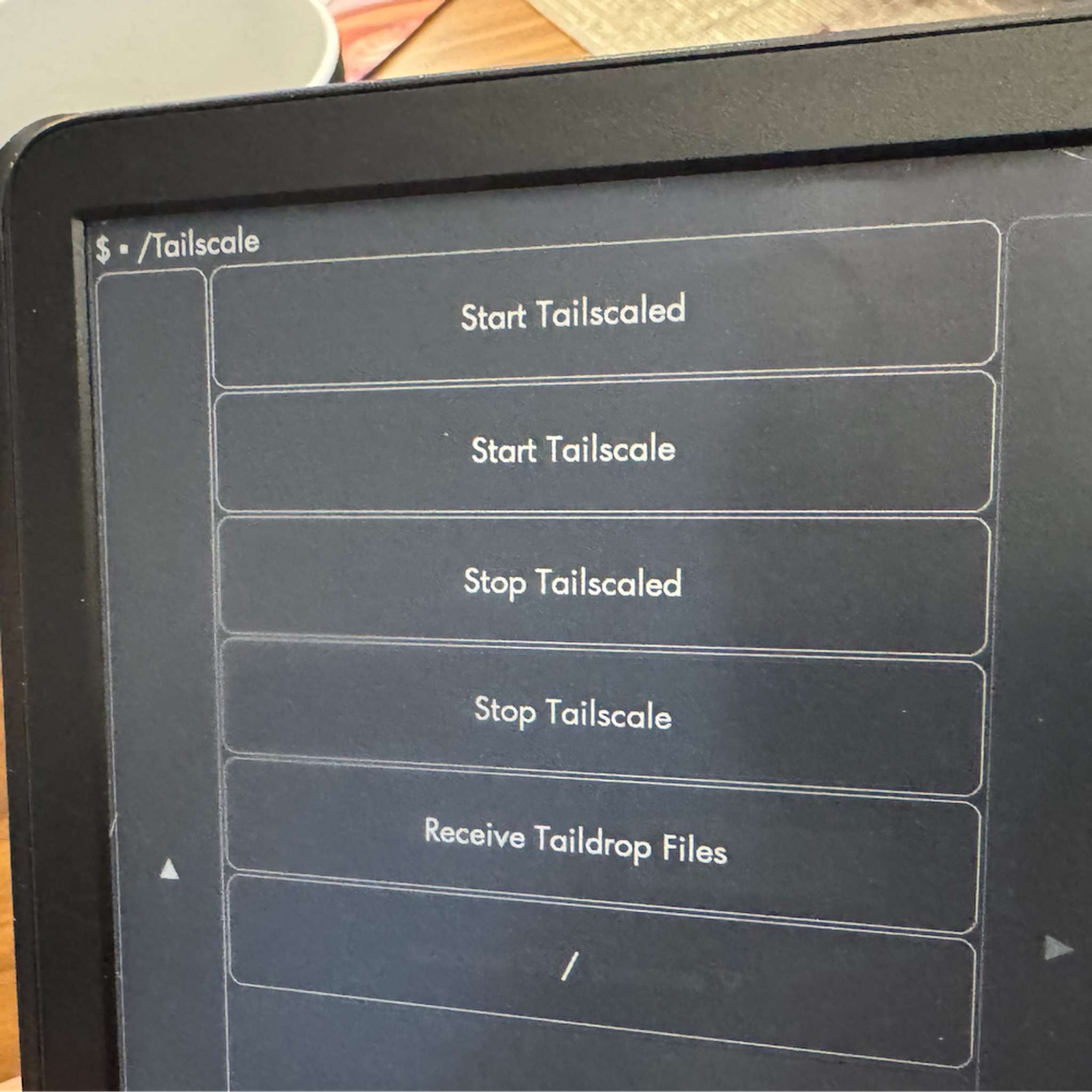
With all that done, open up KUAL on your Kindle. Go into USBNetLite and click USBNetwork Status to ensure it is enabled (tap the Toggle button if not). Go back (with the “/” button at the bottom), tap Tailscale, and first tap Start Tailscaled (note the “d” at the end). Wait about 10 seconds to give the Tailscaled daemon time to start, then tap Start Tailscale.
If everything is settled, you should be able to see your Kindle as connected on your Tailscale admin console. Once you’ve finished smiling to yourself, click the three dots on the right-hand side of the Kindle row and select “Disable key expiry.” In most situations, you’re better off not having to patch a new key value into a Kindle text file every few months.
Enjoy your (slightly) less wonky Kindle
With Tailscale installed, it’s easier to get into your Kindle via SSH for file management and installing and configuring other apps. Getting a Bluetooth keyboard to work via the Kindle’s quirky command-line Bluetooth interface would not have been fun using a touchscreen keyboard.
Because the Kindle is on your tailnet, other devices can access it. Kindles set up this way can use tools like the Shortcut Browser to become dashboards for Home Assistant, or access a self-hosted Calibre-Web e-book server (with some tweaking). (Edit: These generally require a proxy mode, made possible with a later update).
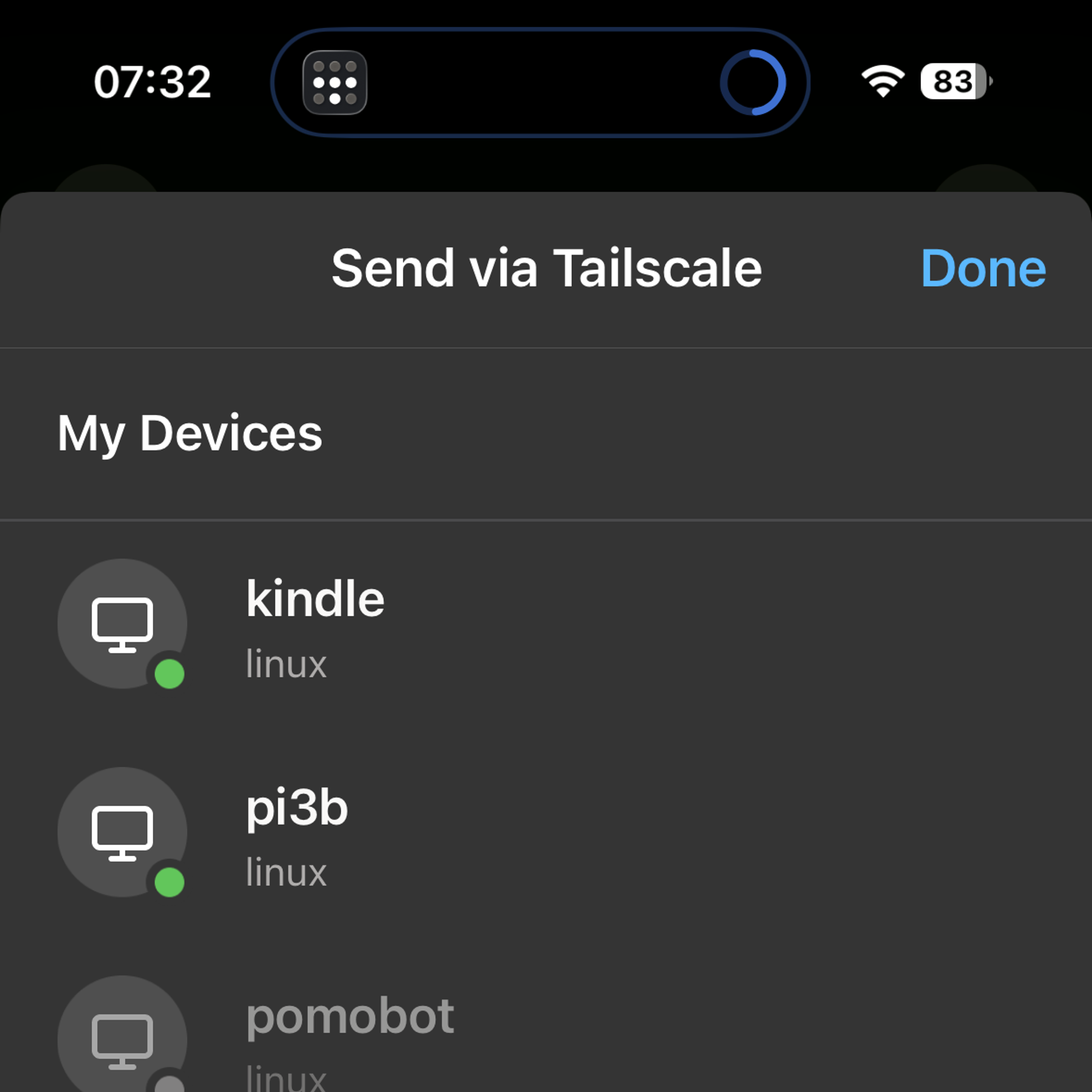
Having Taildrop handy, and having it drop files directly into the documents folder, is probably my favorite upgrade. I was on my phone, at a train station, when I came across Annalee Newitz’s Automatic Noodle at Bookshop.org. I bought it on my phone and downloaded the DRM-free epub file. When I got home, I opened and unlocked my Kindle, sent the epub to the Kindle via Taildrop, then tapped Receive Taildrop Files in the Tailscale app inside KUAL. Epubs, PDFs, comic book archives, DjVu files—they’re all ready to be dropped in.
If you’ve gotten Tailscale to run on weird (or just uncommon) devices, we’d more than love to hear about it. Let us know on Reddit, Discord, Bluesky, Mastodon, or LinkedIn.
Share
Loading...


